スクショも、録画も、コピーの履歴も。 日々の作業によく使うツールが、すぐにカードで並びます。Screenshots, recording, clipboard history and more. The tools you use every day line up as cards, right away.
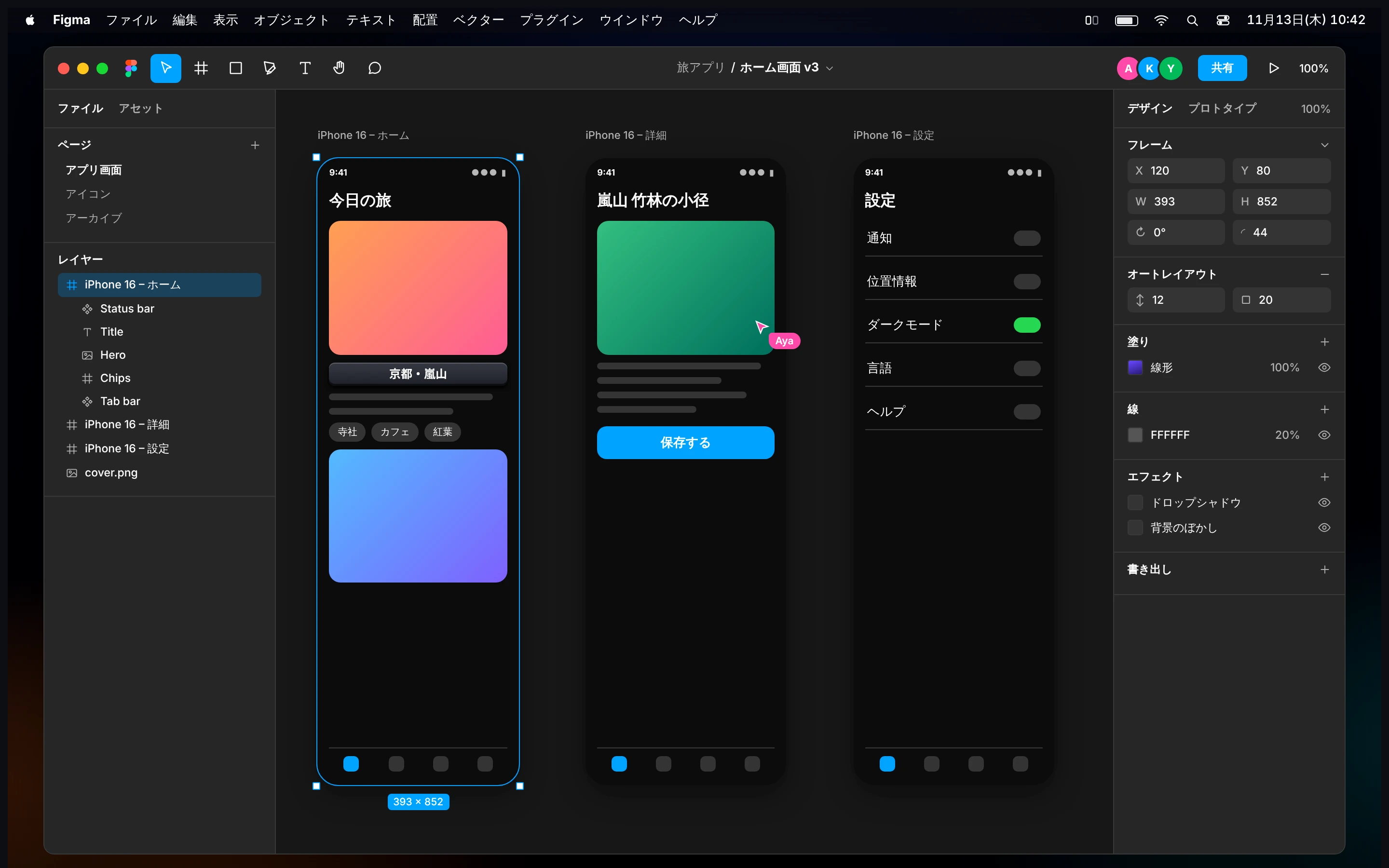
いつもの画面のまま、カードを出して、選ぶだけ。 ショートカットを覚えていなくても使えます。Stay on the screen you're using. Bring up the cards and pick one. No shortcuts to memorize.
⌘右 ⌘ を長押しHold right ⌘1いつもの作業中にWhile you work
どのアプリを使っていても、右 ⌘ を長押しするだけ。作業の手を止めずに、すぐ呼び出せます。Whatever app you're in, just hold the right ⌘ key. It's there without leaving your work.
2カードがすぐ並ぶCards appear
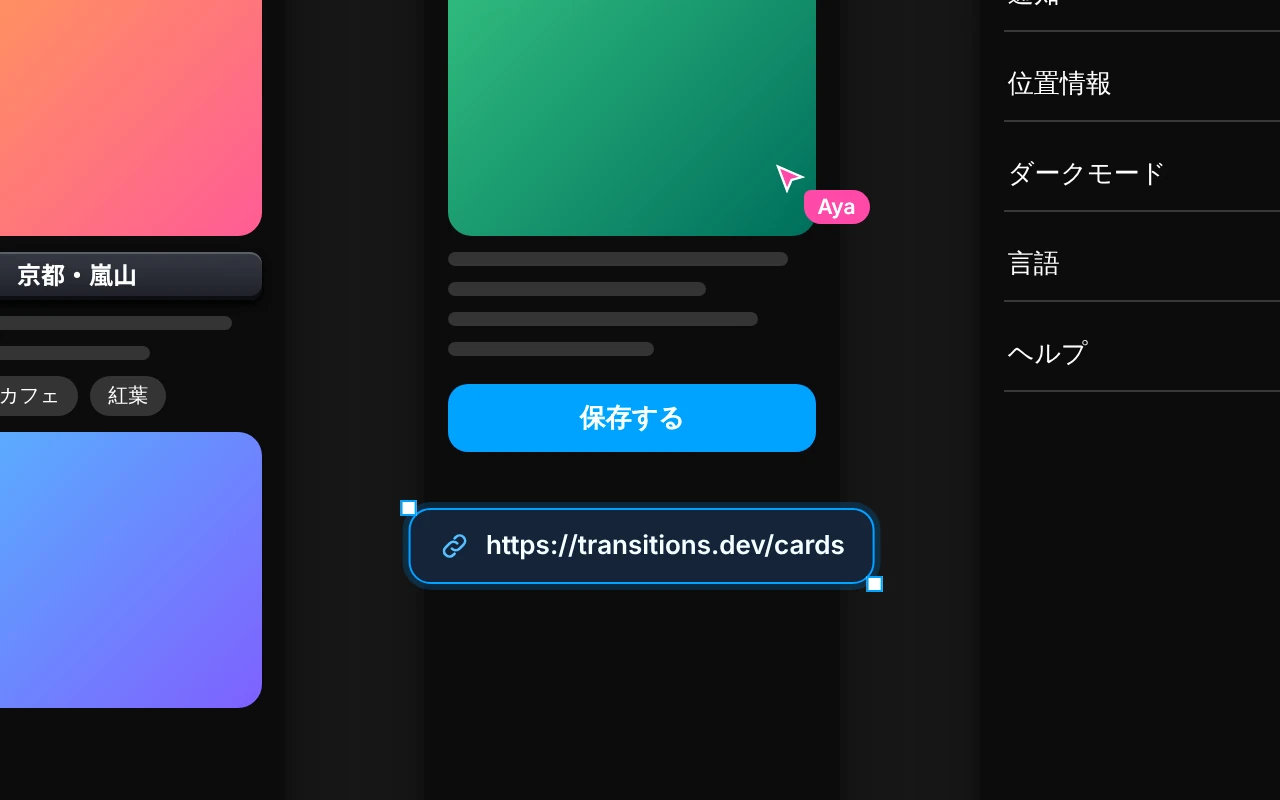
画面の下に、よく使うツールがカードで並びます。いまのアプリのショートカットが先頭です。Your everyday tools line up as cards, with the current app's shortcuts first.
3選んで、そのまま実行Pick one and go
クリックすればその場で実行。終わればすぐ作業の画面へ戻れます。Click and it runs on the spot. Then you're straight back to work.
いまのアプリに合わせてFollows the app you're in
開いているアプリの ショートカットが先頭にThe shortcuts of the app you're using, up front
メニューからショートカットを自動で読み取ります。見るだけの一覧ではなく、押せばそのまま実行します。Shortcuts are read straight from the app's menus. It isn't a cheat sheet: click one and it runs.
Figma・Photoshop・Illustrator・Excel など、どのアプリでもWorks with Figma, Photoshop, Illustrator, Excel and anything else
よく使うものは、アプリごとにピン留めPin your favorites, per app
メニューを検索して、そのまま実行Search the menus and run the result
F
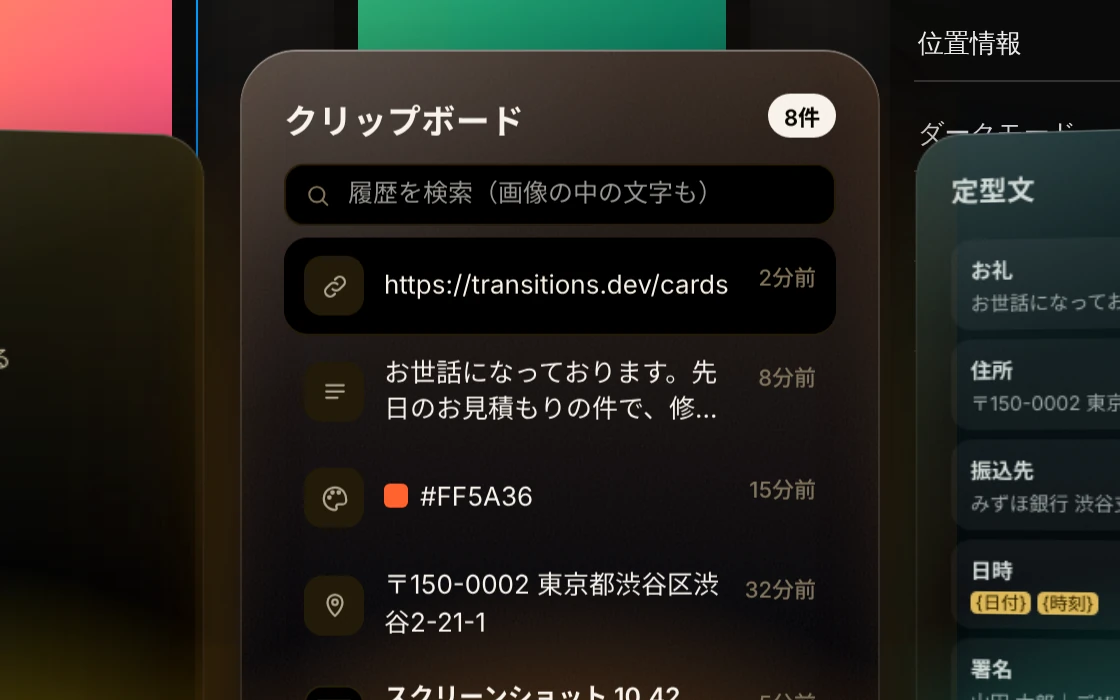
クリップボードClipboard
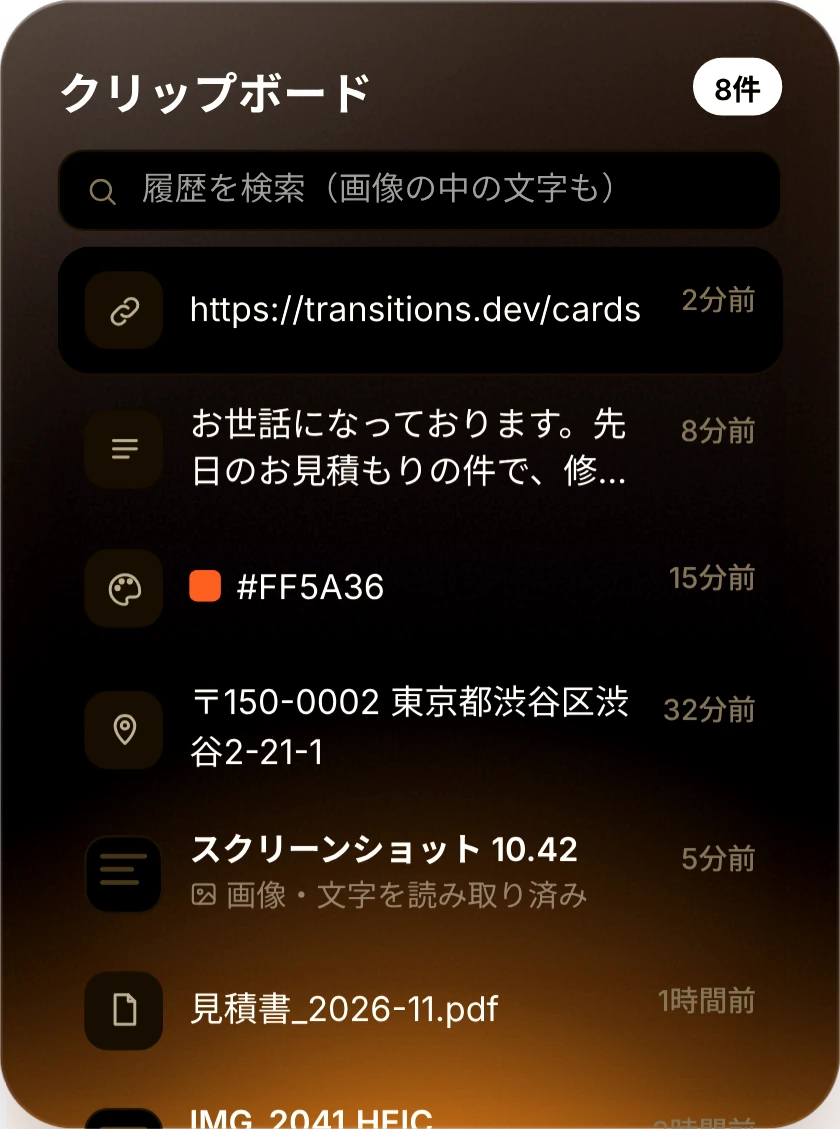
コピーしたものは、 あとから全部探せるEverything you copied, ready to find again
文字・画像・ファイルのコピーを、さかのぼって貼り付けられます。スクショの中の文字まで読み取るので、画像も文字で探せます。Go back through copied text, images and files and paste any of them. Text inside screenshots is read too, so you can search images by their words.
画像の中の文字でも検索Search the text inside images
URL・色・住所などは種類ごとにアイコンURLs, colors and addresses get their own icons
履歴は Mac の中だけに保存History stays on your Mac
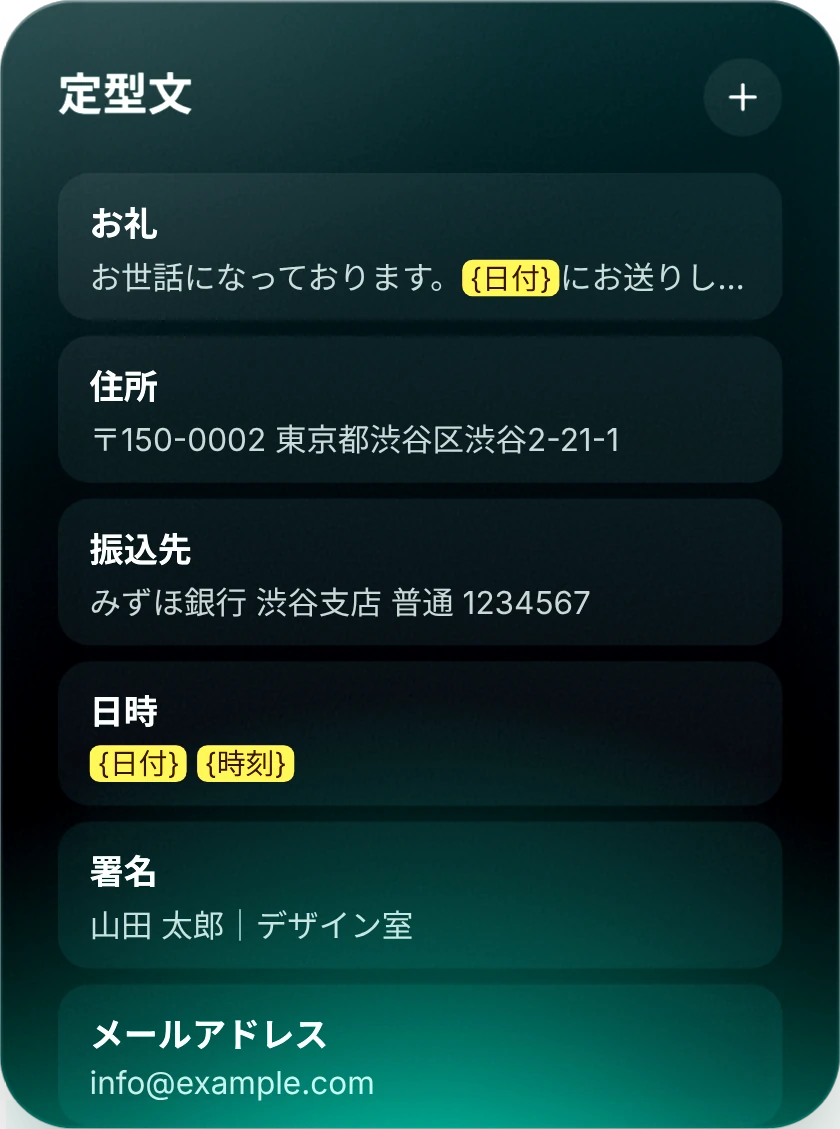
定型文Snippets
いつもの文面は、 1クリックで入力Your usual text, in one click
あいさつ・住所・振込先・署名など、よく打つ文面を登録しておけば、カーソルの位置にそのまま入ります。Save greetings, addresses, bank details and signatures, and drop them in right at the cursor.
{日付}{時刻} で今日の日付や時刻が入る{date} and {time} fill in automatically
メールにもチャットにも、どのアプリにもWorks in mail, chat and any other app
よく使う順に並べ替えReorder by what you use most
いつもの作業を、すぐそこにEveryday tasks, right there
クリップボードの履歴、定型文、お気に入り、最近のファイル、今週の予定とやること、タイマーや再生中の曲。毎日開くものを、カードに並べておけます。Clipboard history, snippets, favorites, recent files, this week's events, to-dos, a timer and what's playing. The things you open every day, lined up as cards.
ショートカットShortcutsいまのアプリのショートカットをメニューから読み取り、押せばそのまま実行します。Reads the current app's shortcuts from its menus. Click one and it runs.
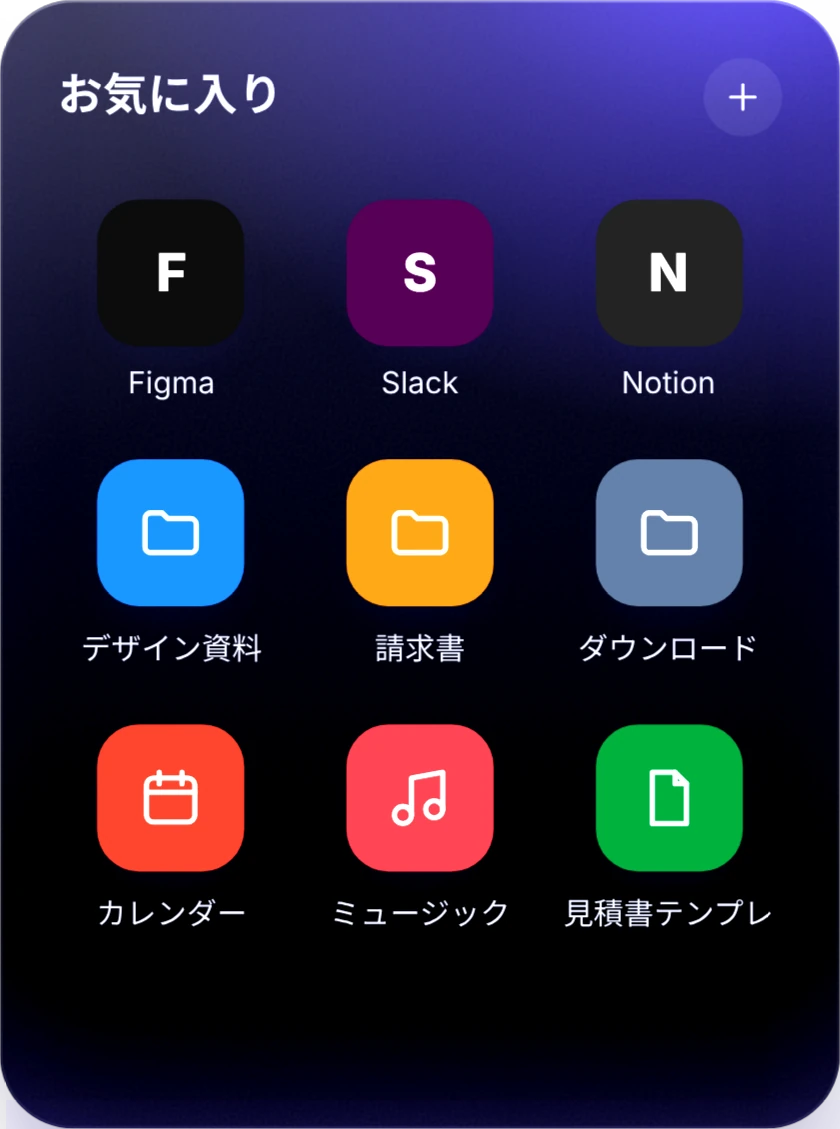
クリップボードClipboardコピーした文字・画像・ファイルの履歴。画像の中の文字でも探せます。History of copied text, images and files. Search even the text inside images.
定型文Snippetsよく使う文面をカーソルの位置に貼り付け。{日付}{時刻}も入ります。Paste saved text at the cursor, with {date} and {time} filled in.
お気に入りFavoritesアプリ・フォルダ・ファイルを1クリックで開きます。Open apps, folders and files in one click.
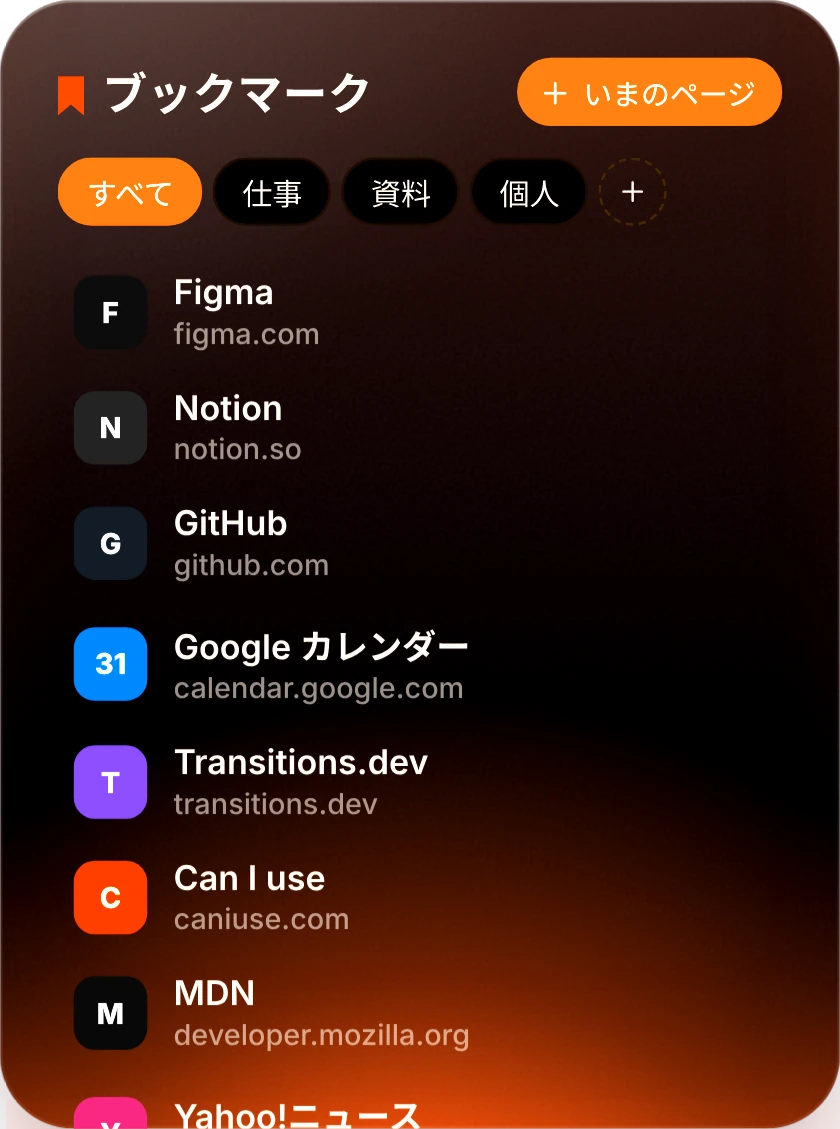
ブックマークBookmarks見ているページをボタン1つで保存して、タグで整理します。Save the page you're on with one click and sort it with tags.
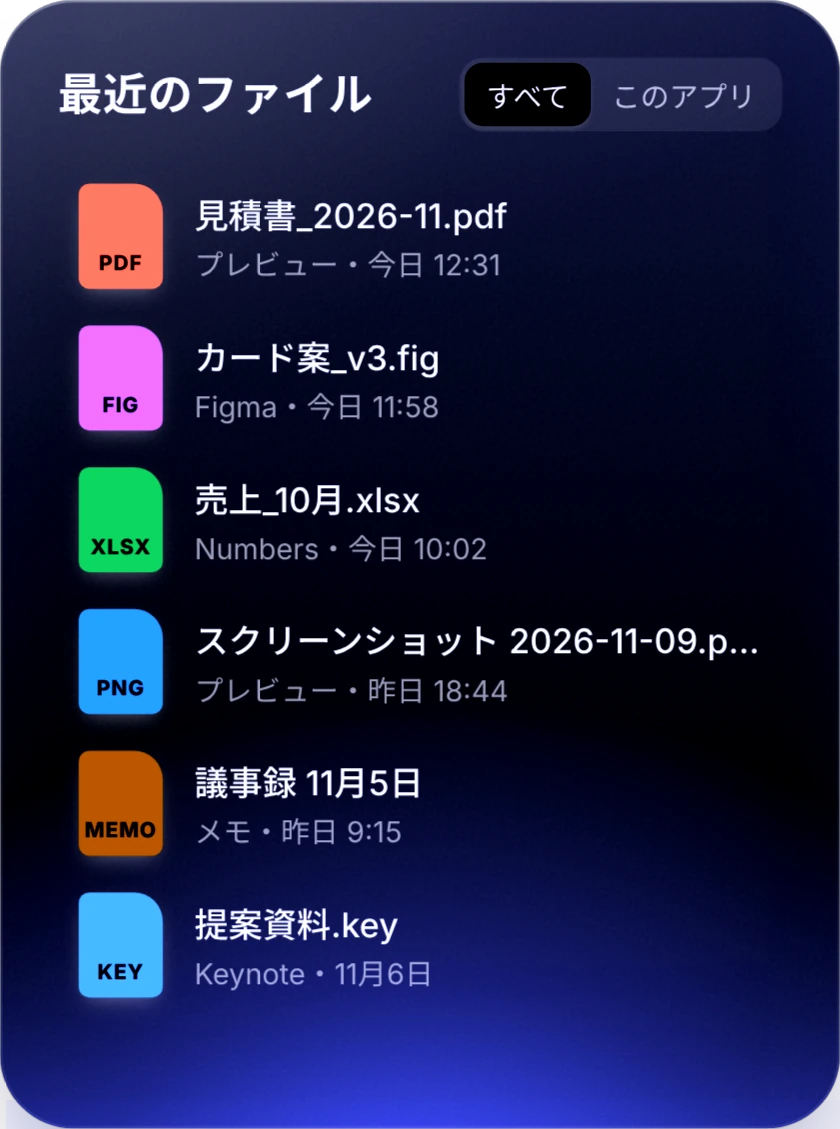
最近のファイルRecent filesさっき保存したファイルを、アプリごとにすぐ開けます。Reopen what you just saved, grouped by app.
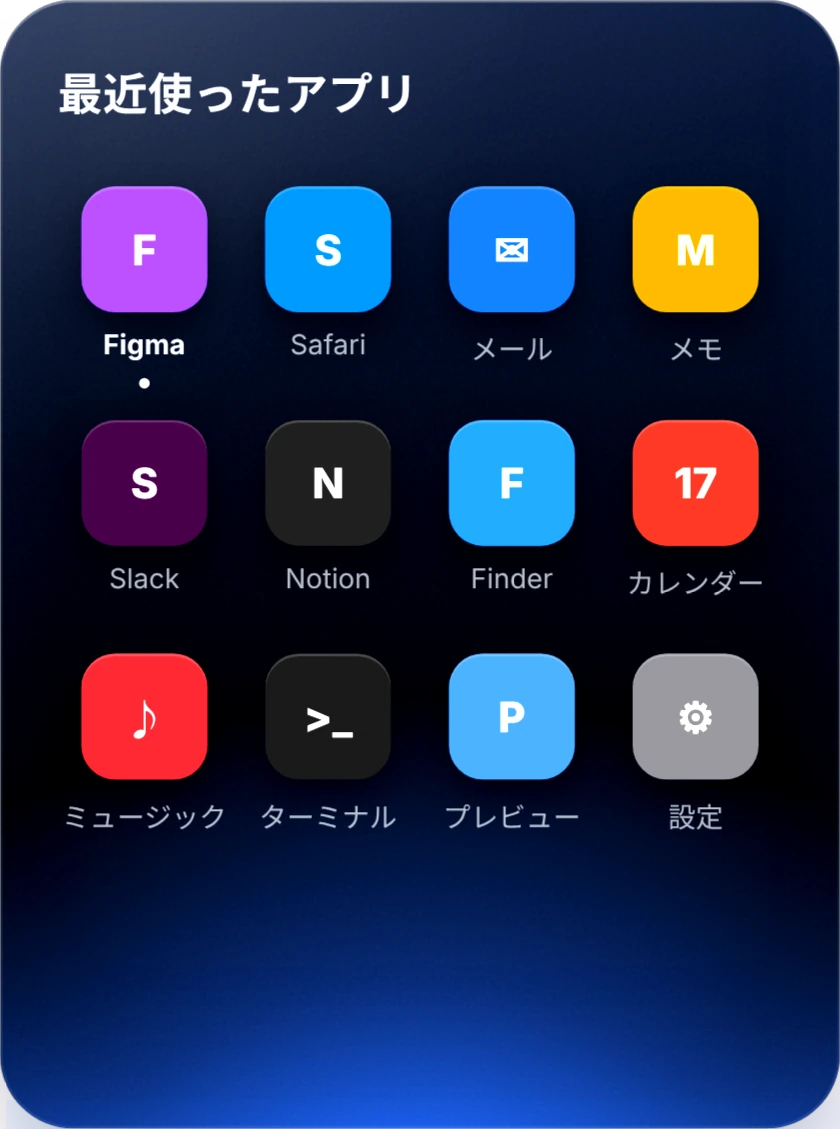
最近使ったアプリRecent apps直前まで使っていたアプリに、すぐ戻れます。Jump back to the apps you were just using.
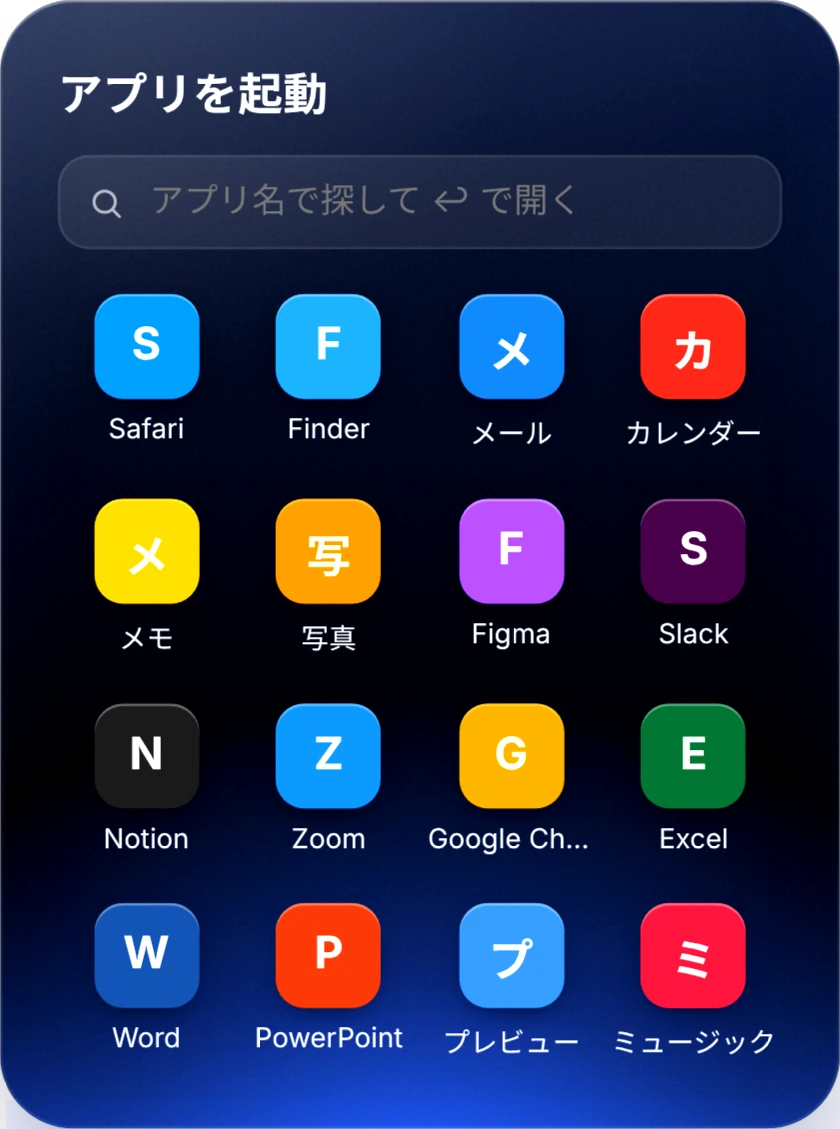
アプリを起動App launcher名前の一部を打って ↩ で開きます。Type part of a name and press ↩.
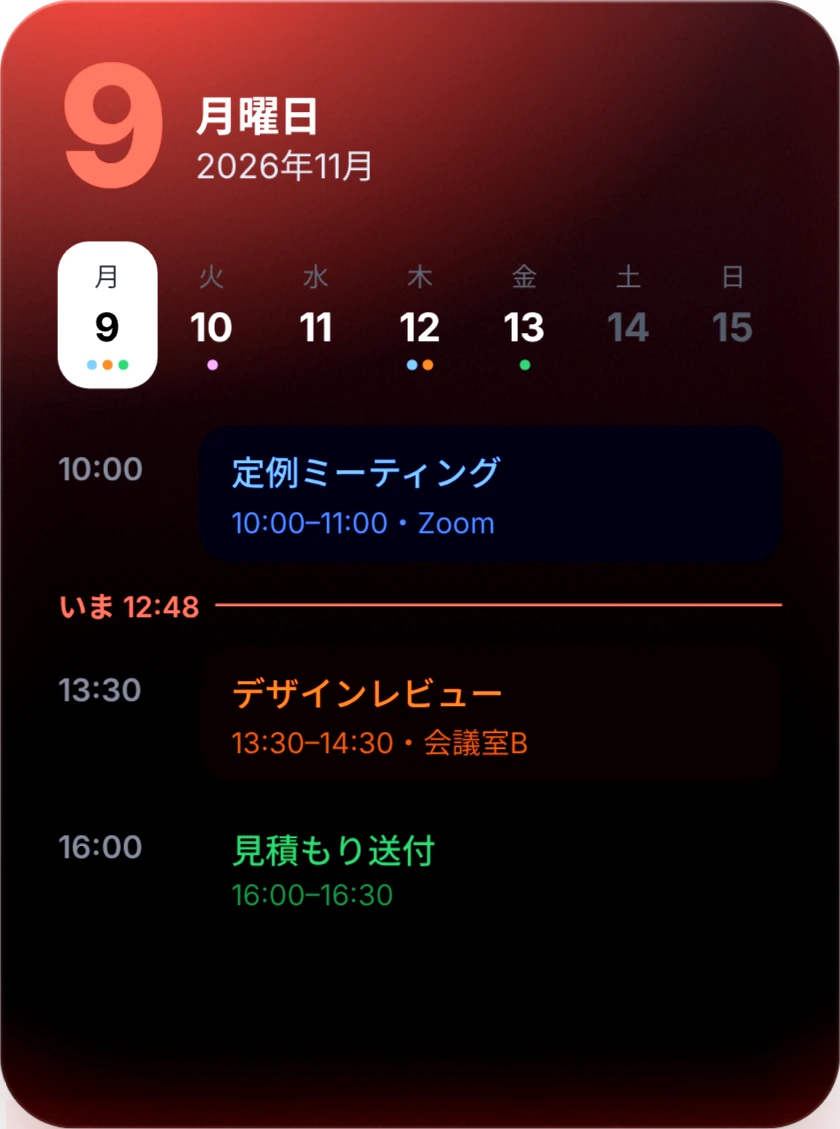
今週の予定This weekカレンダーの予定を1週間分。いまの時刻の線つきです。A week of Calendar events, with a line for the current time.
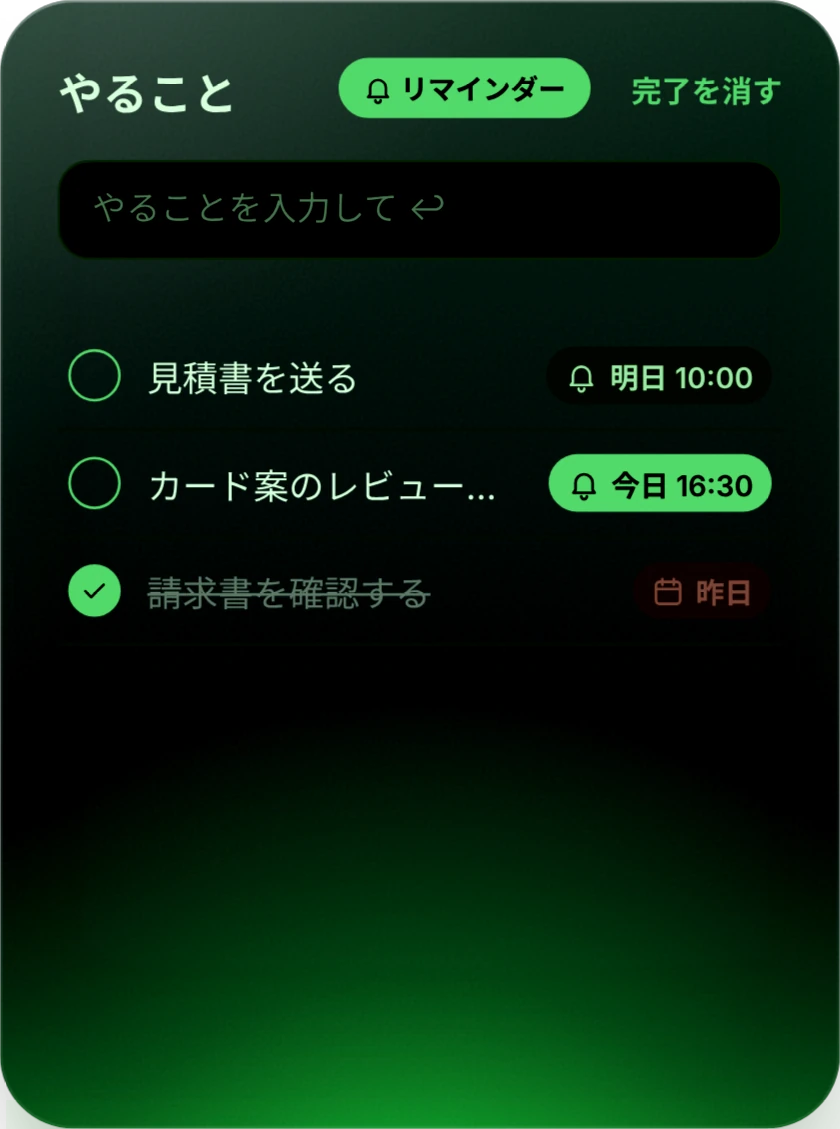
やることTo-dos打って ↩ で追加。リマインダーと同期して、時刻に知らせます。Type and press ↩. Synced with Reminders, with alerts on time.
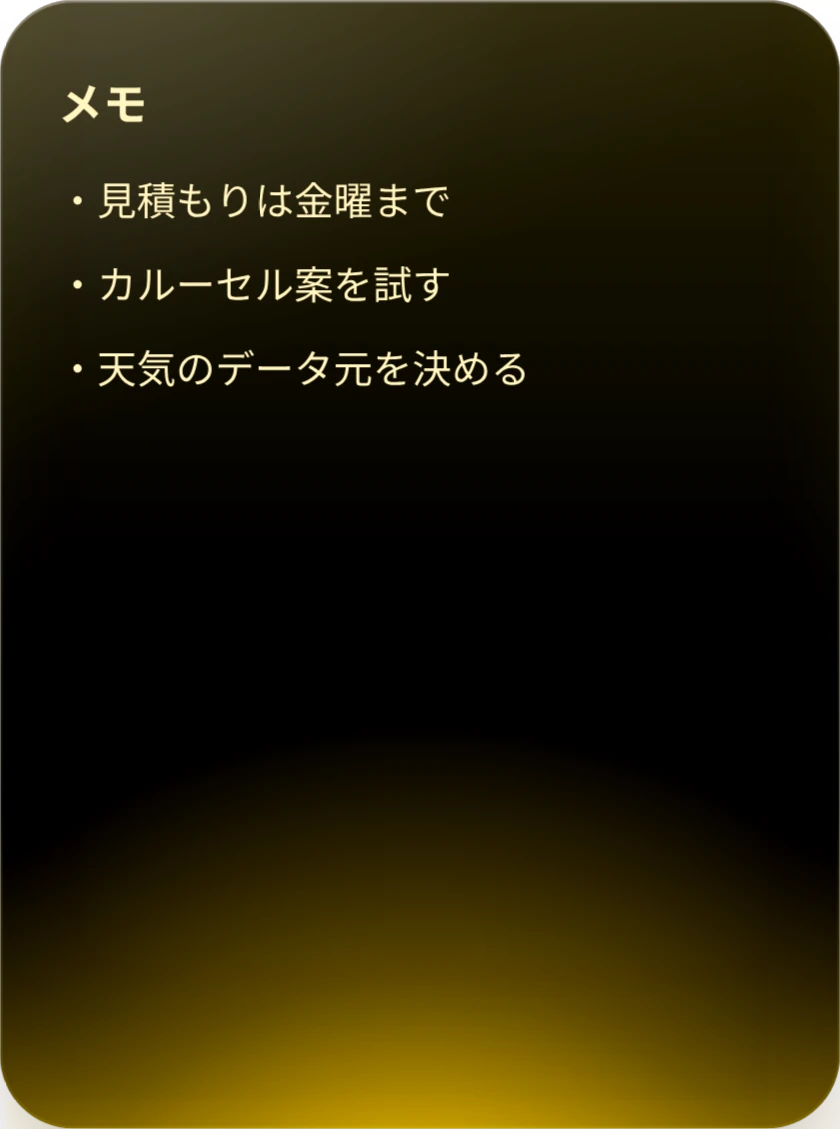
メモNotes思いついたことを、その場で書き留めます。Jot something down the moment you think of it.
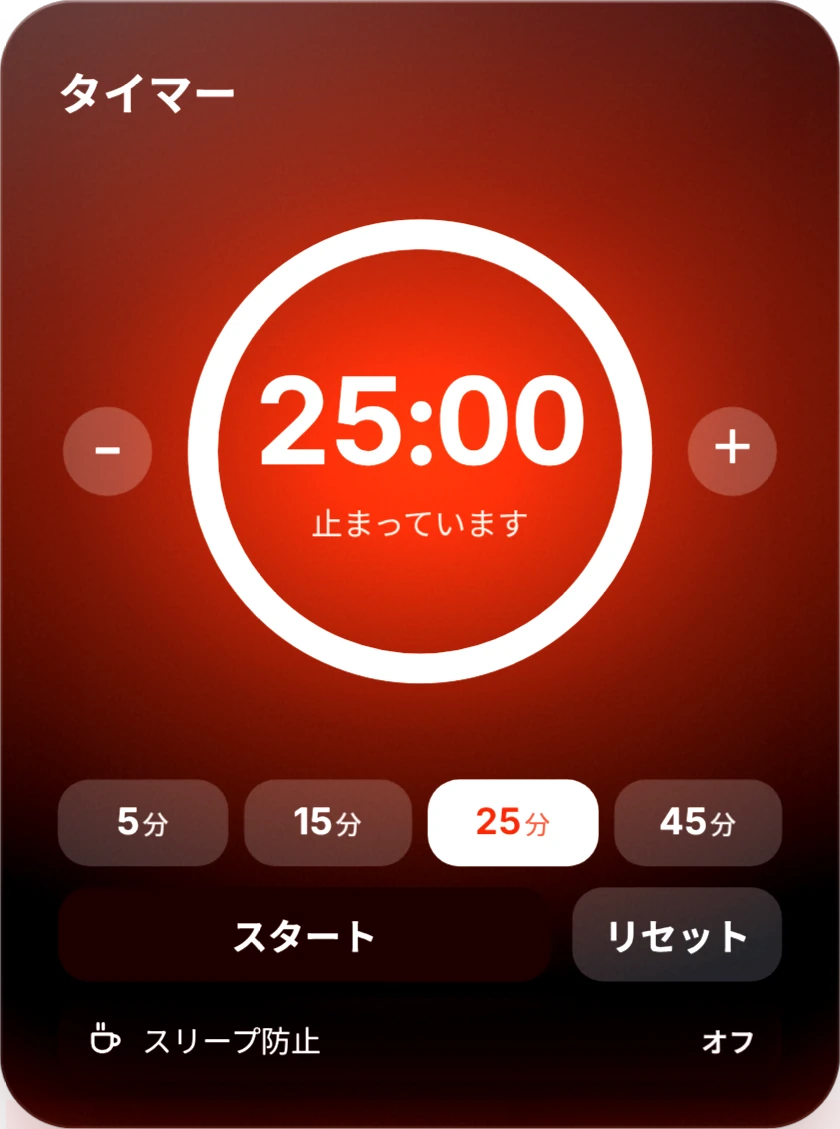
タイマーTimer集中したいときのタイマー。スリープ防止の切り替えもあります。A focus timer, plus a keep-awake switch.
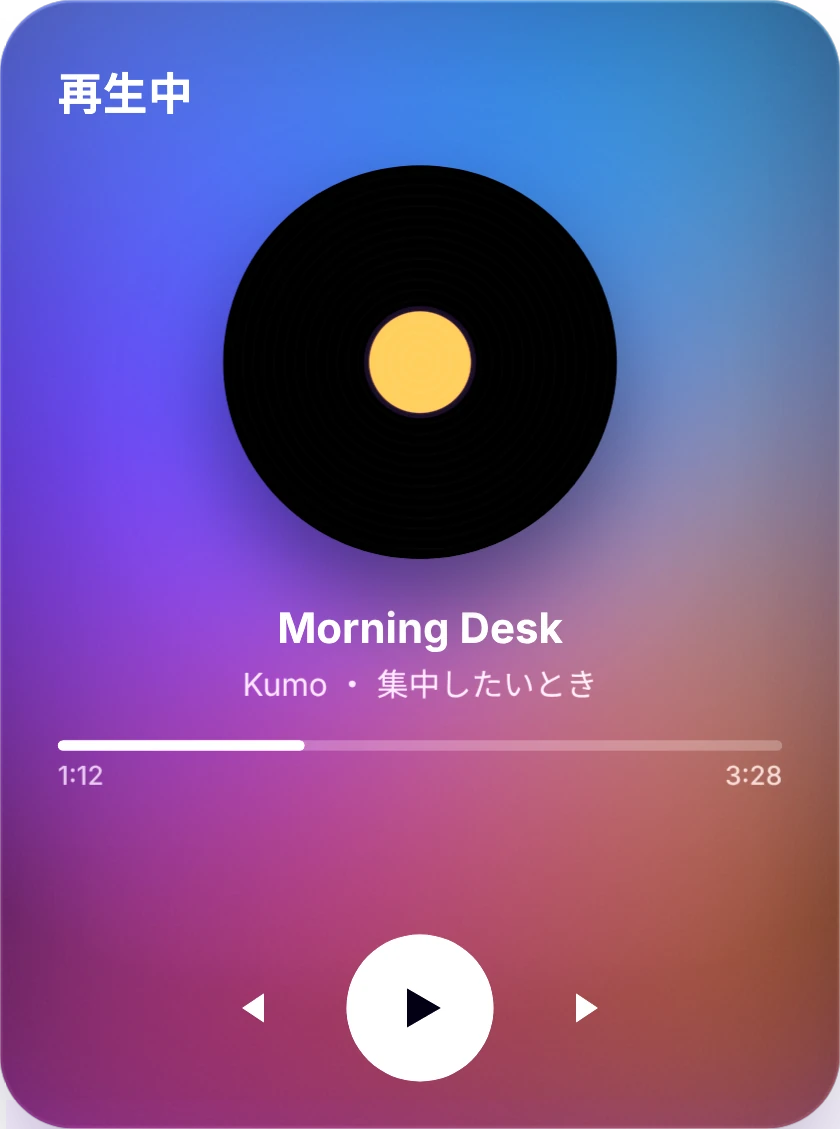
再生中Now playingミュージックや Spotify の曲名と、再生の操作。Track info and controls for Music and Spotify.
撮る、まとめる、変える。Capture, zip, convert.
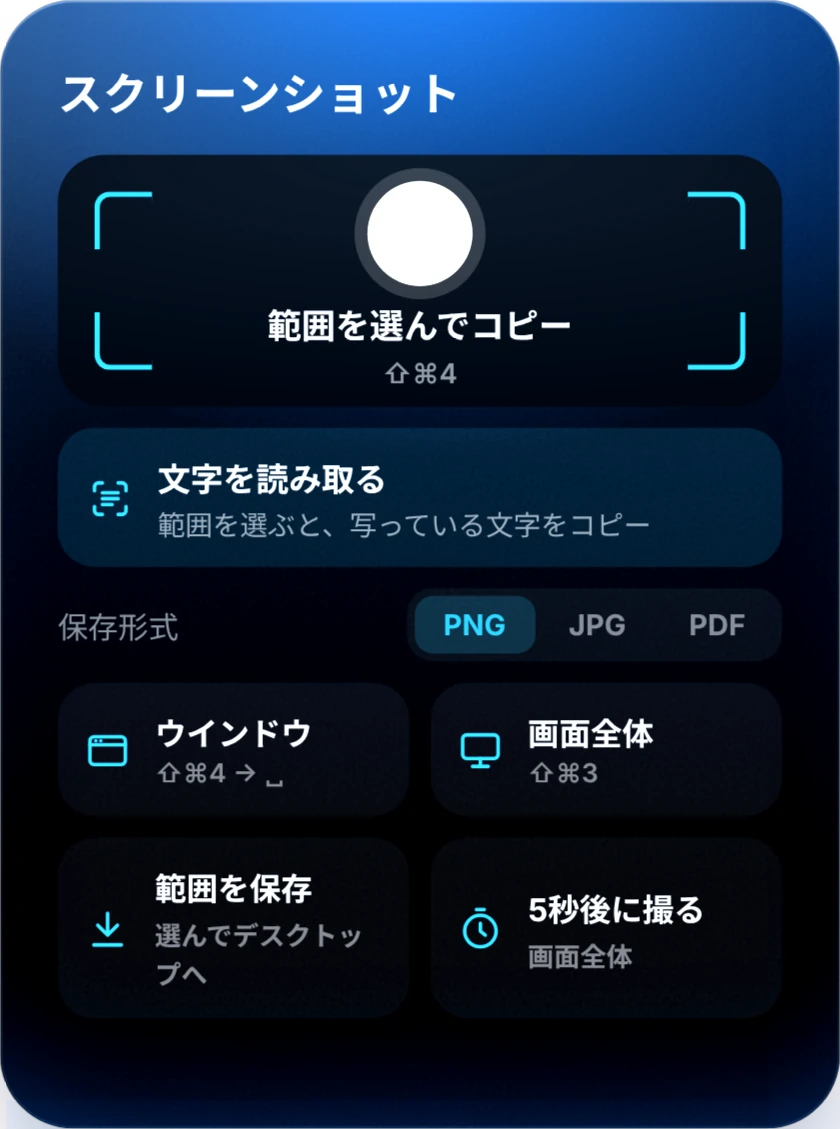
スクショと文字の読み取り、Windows で文字化けしない ZIP、WebP や HEIC への変換。ファイルはドロップするだけです。Screenshots with text capture, clean ZIPs that open fine on Windows, WebP and HEIC conversion. Just drop the file in.
スクリーンショットScreenshot範囲・ウインドウ・画面全体。写っている文字の読み取りもできます。Region, window or full screen, plus copying the text in it.
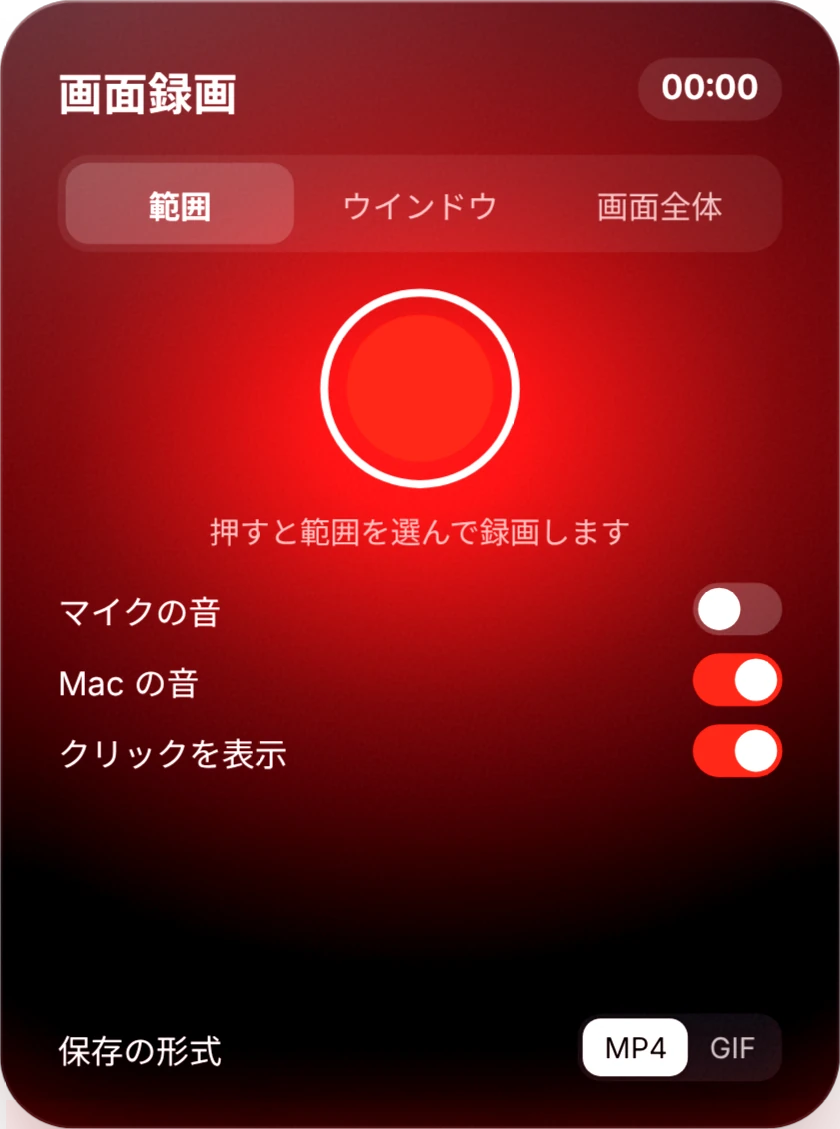
画面録画Screen recording範囲を選んで録画。マイクや Mac の音も入れられ、GIF でも保存できます。Record a region with mic or system audio. Save as MP4 or GIF.
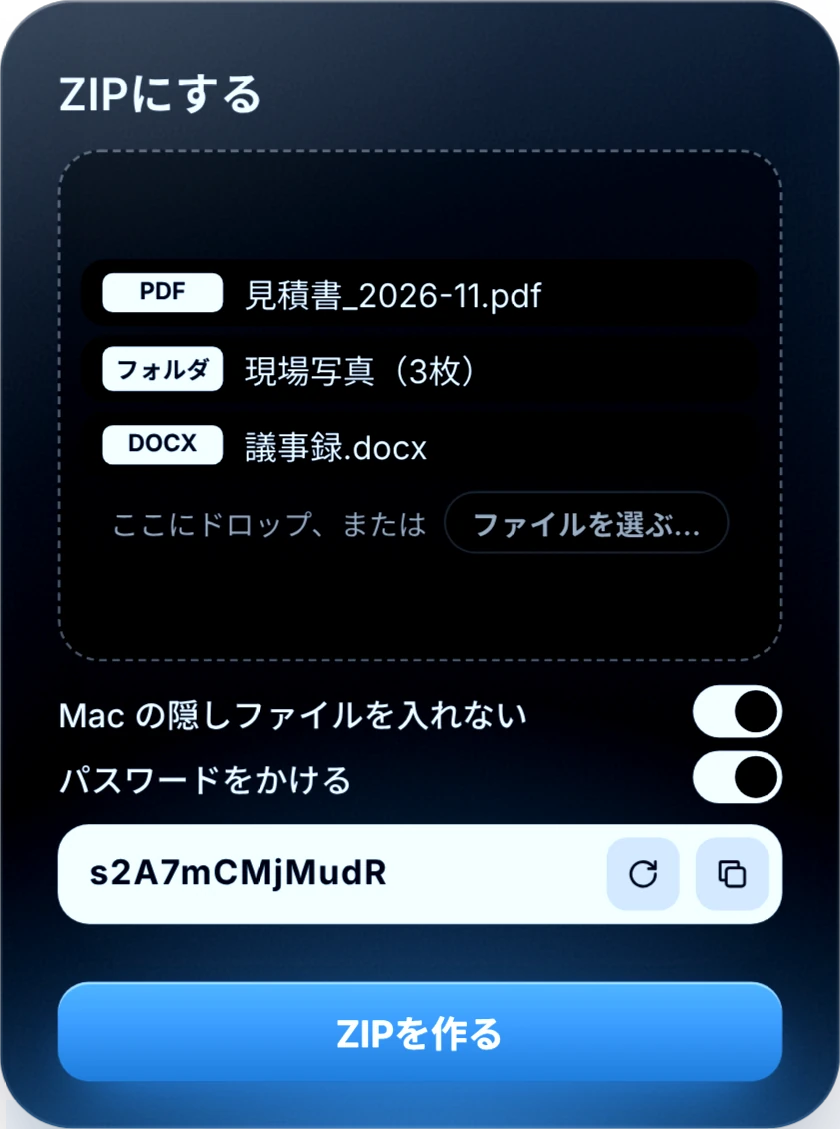
ZIP にするMake a ZIPWindows で文字化けしない ZIP。隠しファイルを除き、パスワードも付けられます。ZIPs that open cleanly on Windows, without hidden Mac files, with an optional password.
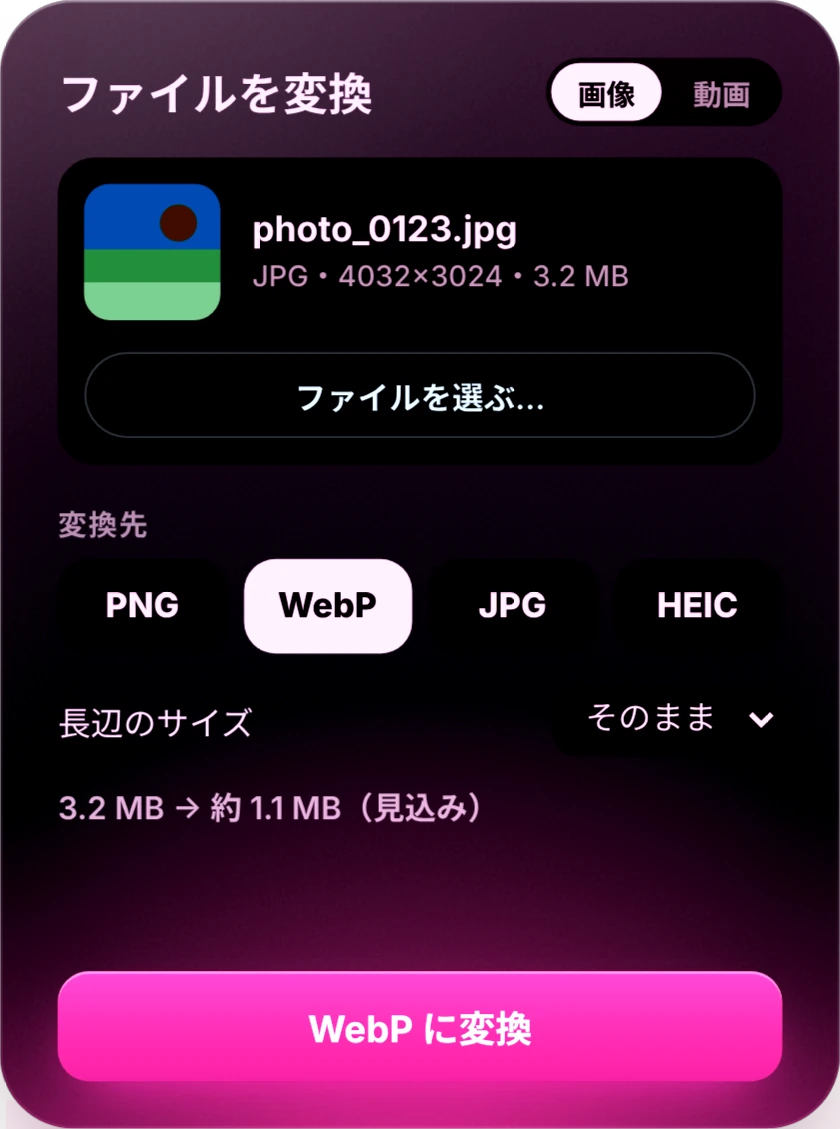
ファイルを変換Convert files画像を PNG・JPG・WebP・HEIC に。動画の変換もできます。Images to PNG, JPG, WebP or HEIC. Video too.
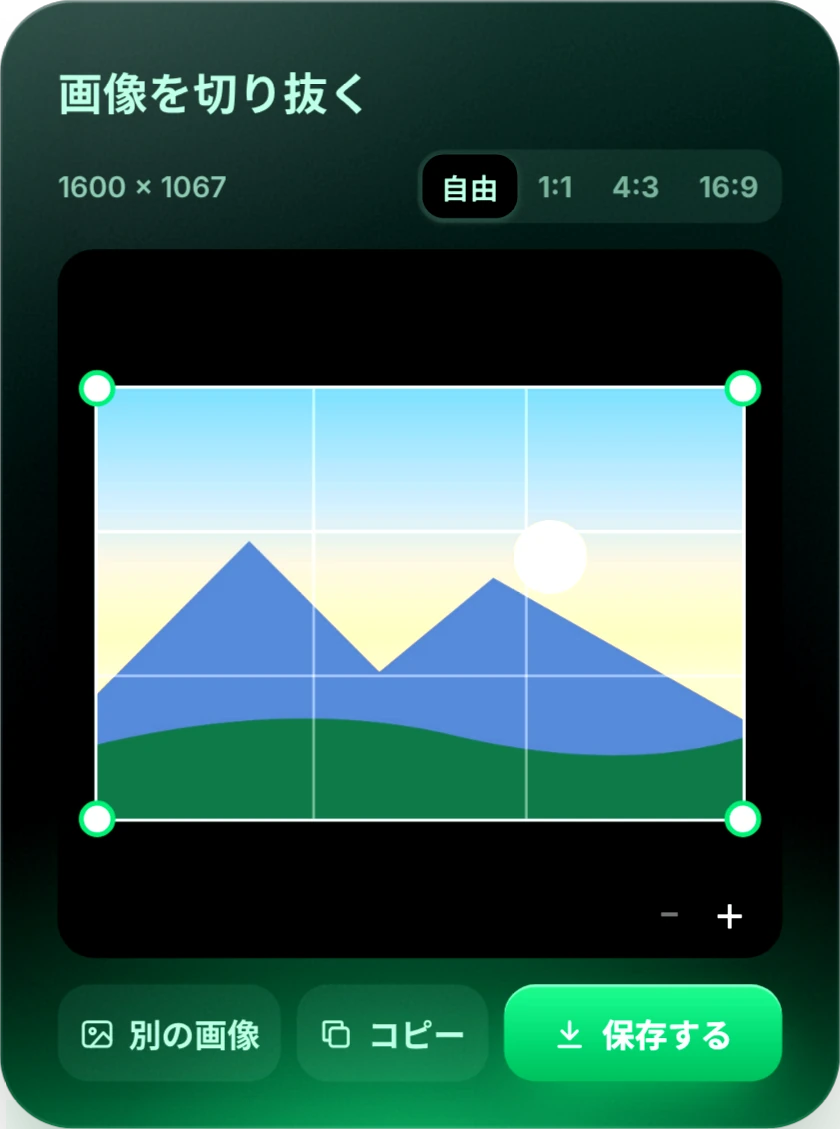
画像を切り抜くCrop an image比率を選んで切り抜き、コピーか保存。Pick a ratio, crop, then copy or save.
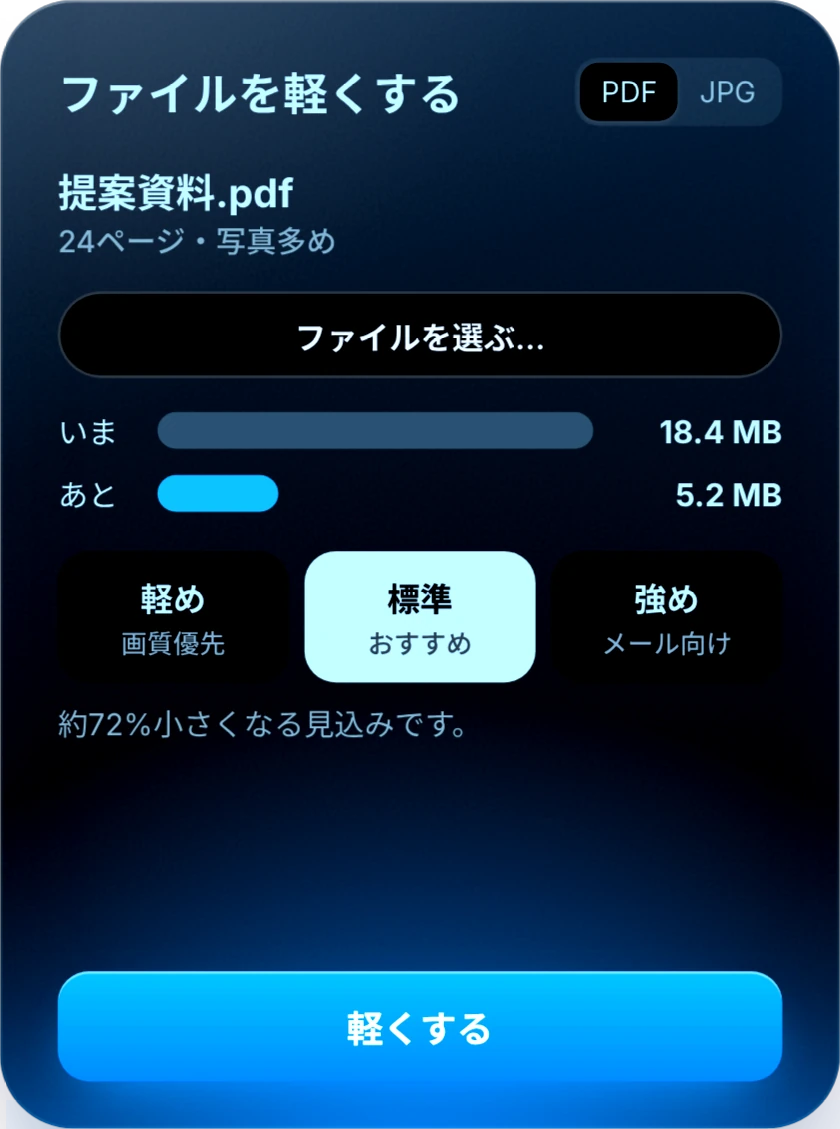
ファイルを軽くするShrink filesPDF や画像を、仕上がりのサイズを見ながら小さくします。Shrink PDFs and images while seeing the expected size.
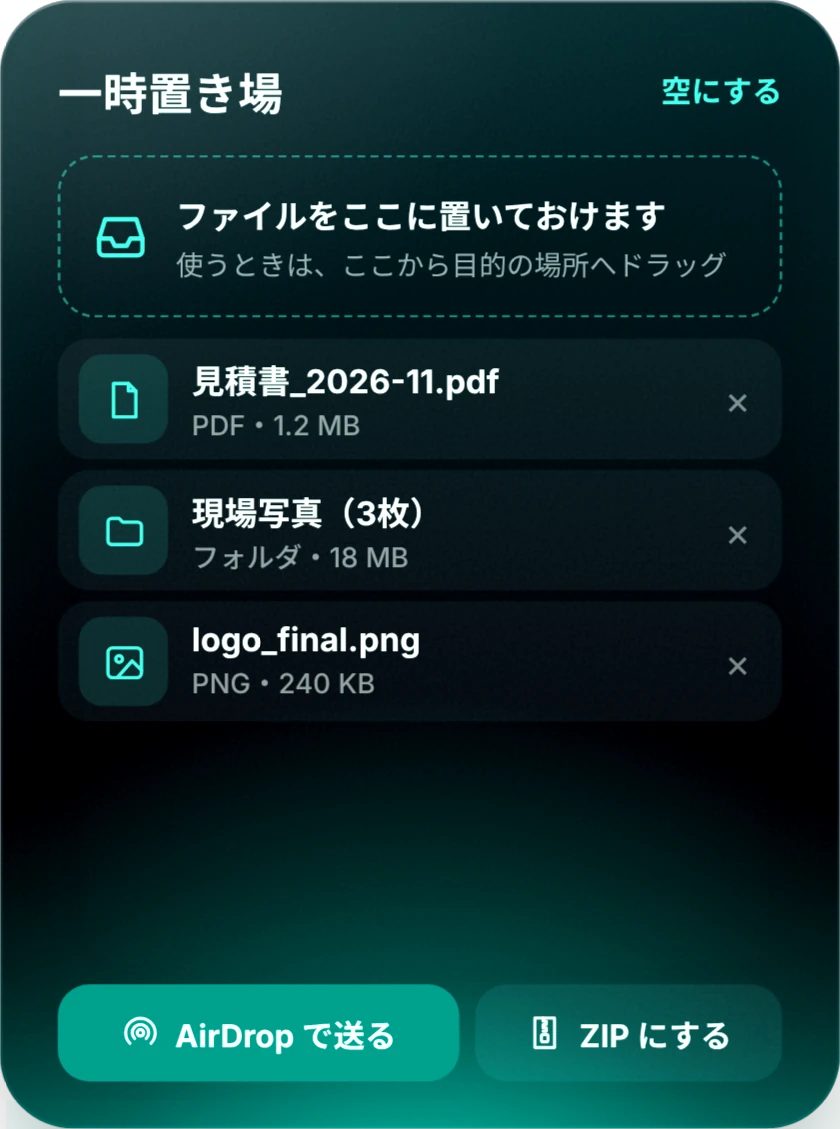
一時置き場Shelfファイルをいったん置いて、あとで目的の場所へ。AirDrop でも送れます。Park files for later, then drag them where they go or AirDrop them.
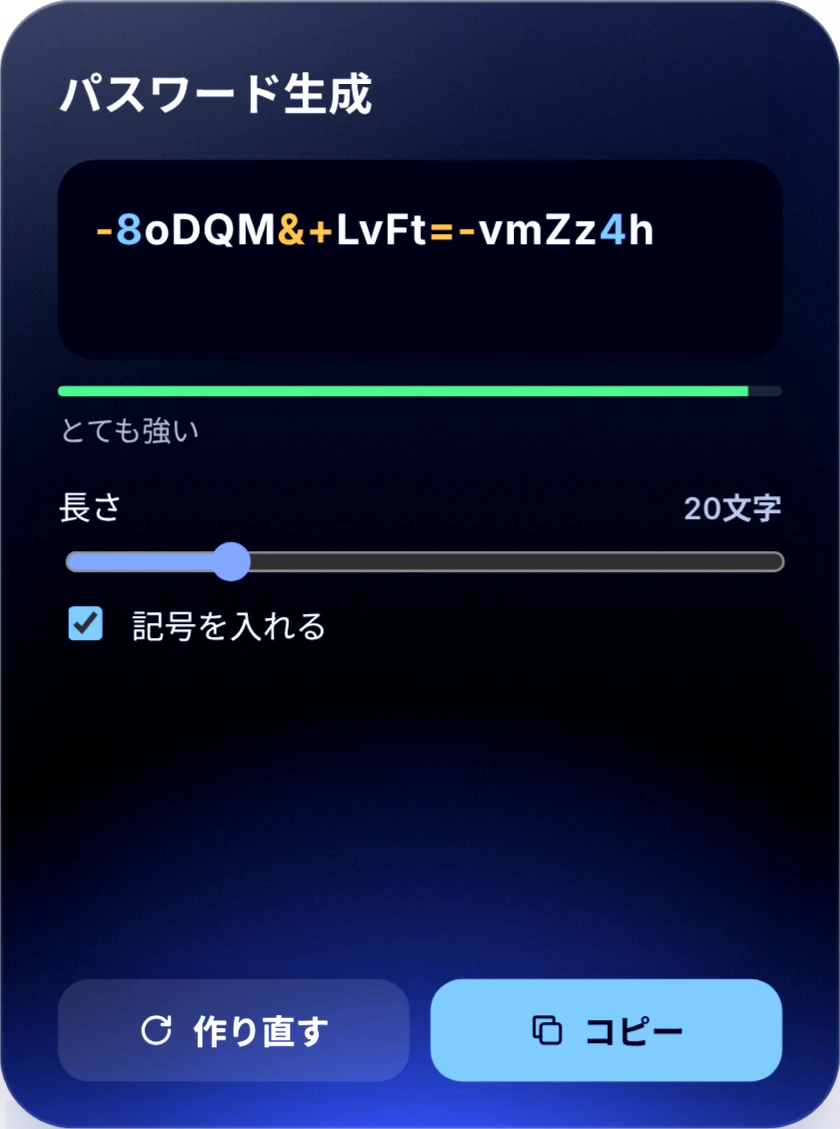
パスワード生成Password generator長さと記号を選んで、強いパスワードを作ります。Choose length and symbols for a strong password.
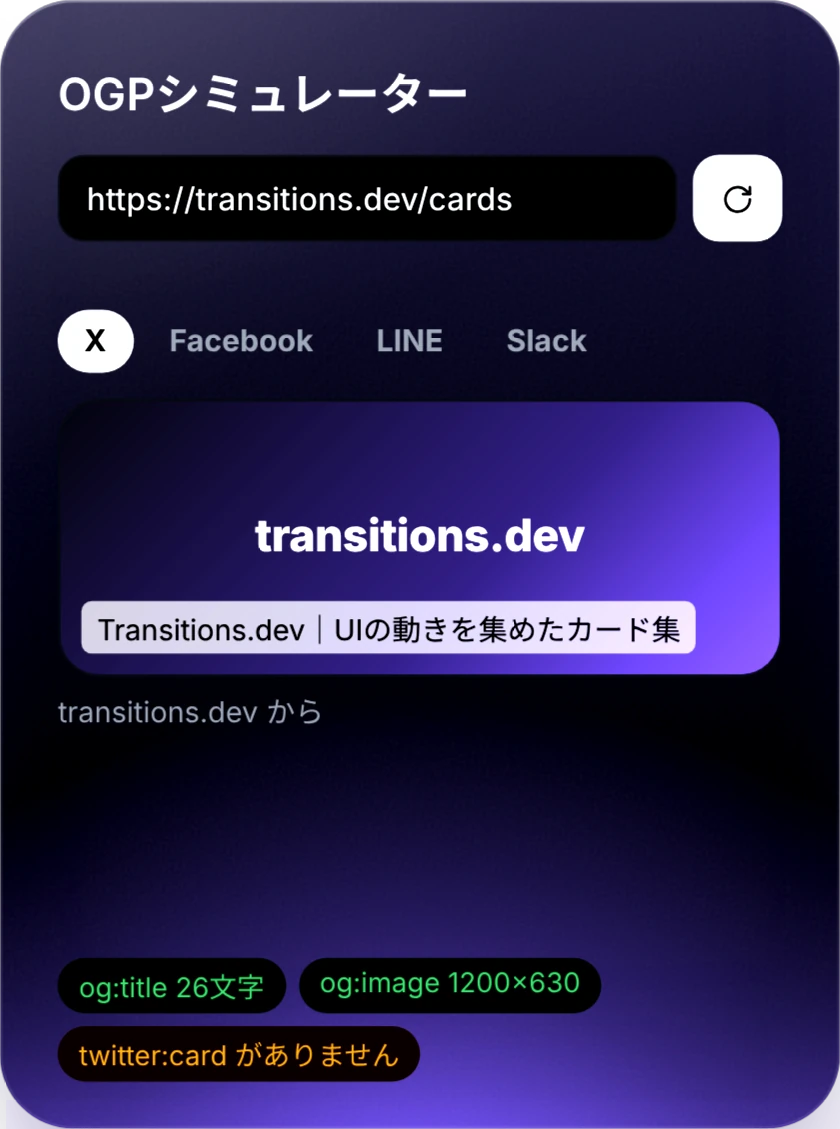
OGP シミュレーターLink preview checkURL を入れると、X・Facebook・LINE でどう見えるかを確かめられます。See how a URL will look when shared on X, Facebook and LINE.
ちょっと調べたいときもFor quick questions, too
翻訳・辞書・電卓から、画面の色や長さまで。その場で答えが出て、結果はそのままコピーできます。Translate, look things up, do the math, even pick colors and measure the screen. Answers appear on the spot, ready to copy.
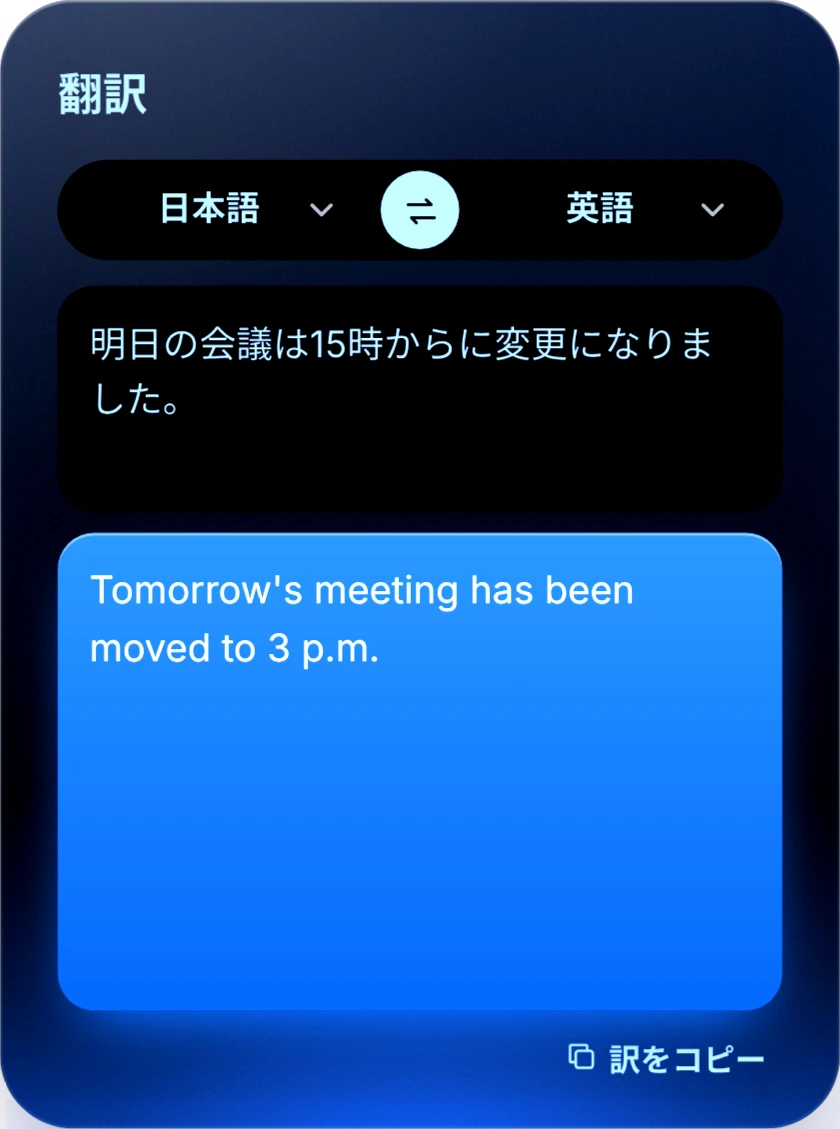
翻訳Translate打ったその場で訳して、訳をコピーできます。Translates as you type. Copy the result.
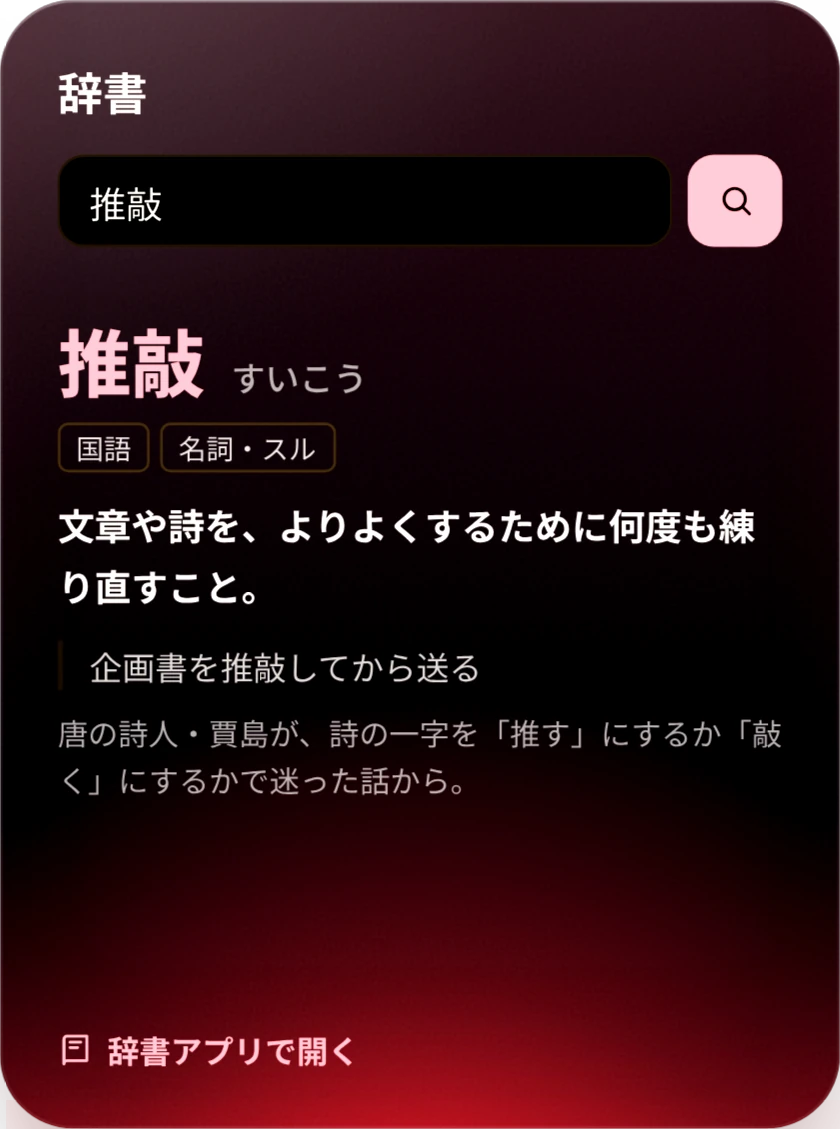
辞書DictionaryMac の辞書で言葉を引きます。Look words up in the Mac's dictionary.
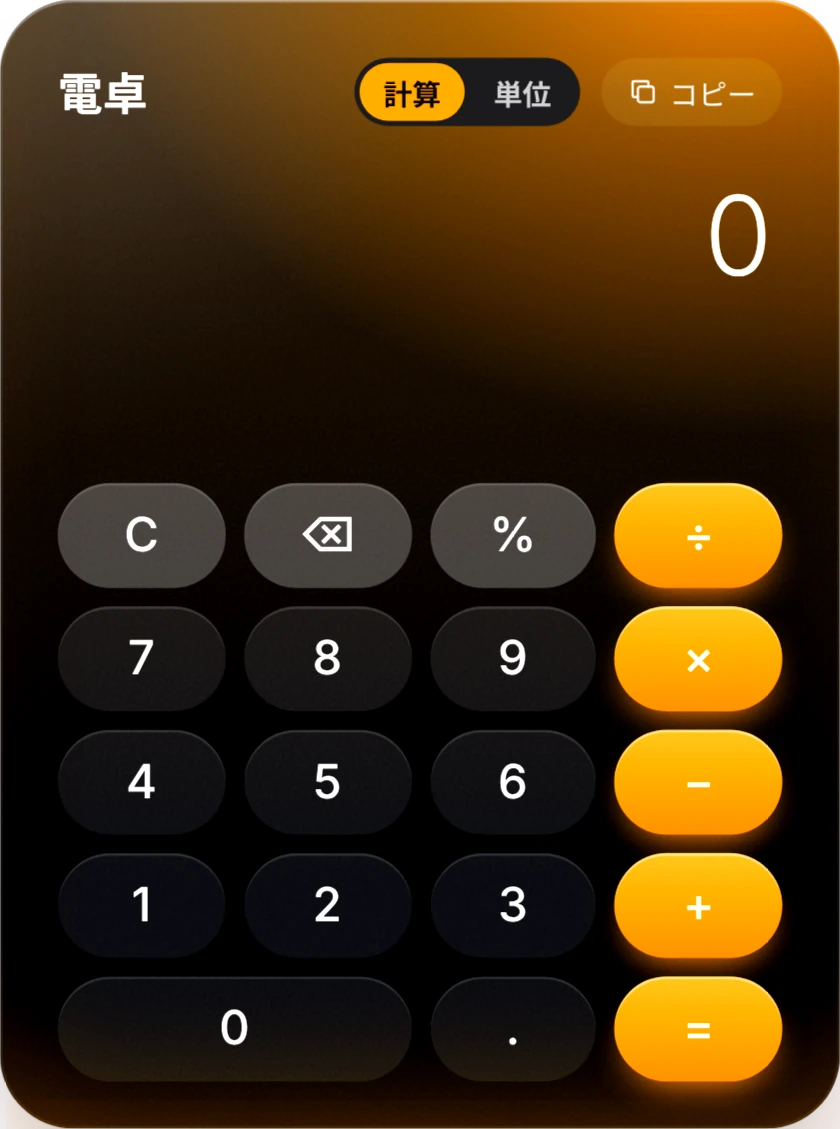
電卓Calculator計算と単位の変換。結果はそのままコピーできます。Math and unit conversion, ready to copy.
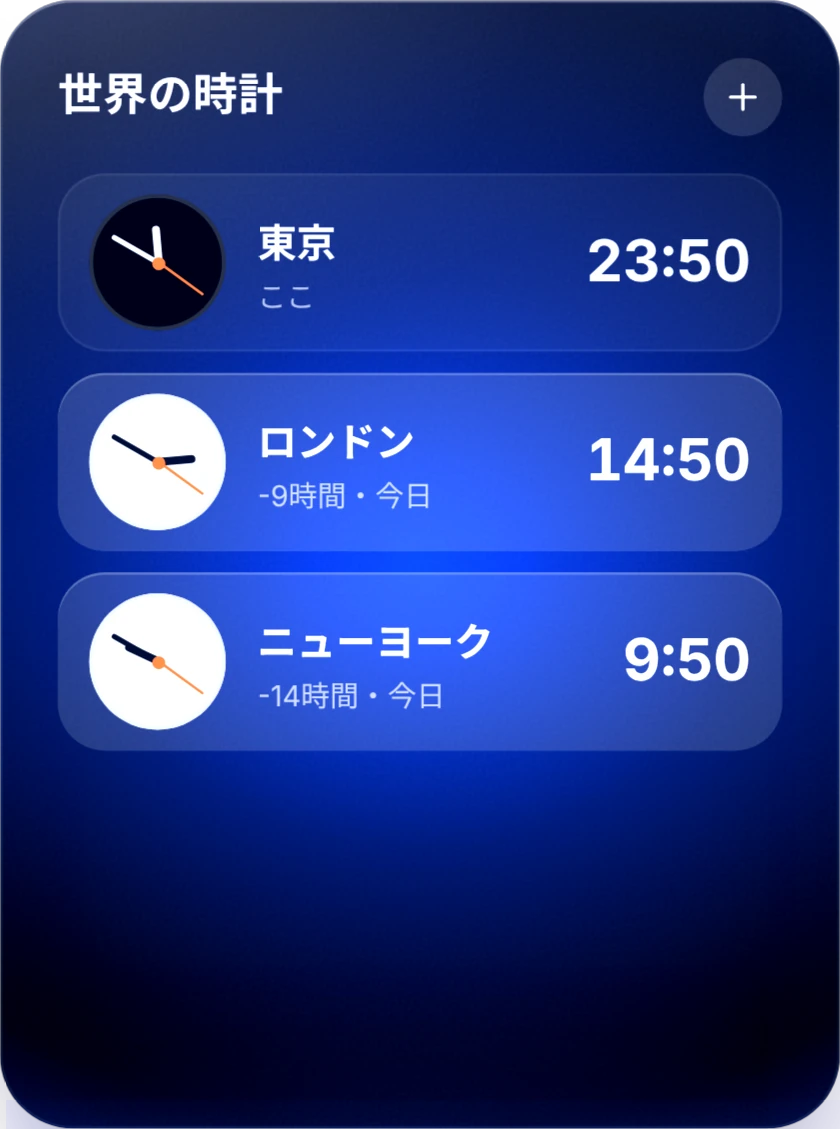
世界の時計World clock好きな都市の時刻を並べて見られます。Times in the cities you care about, side by side.
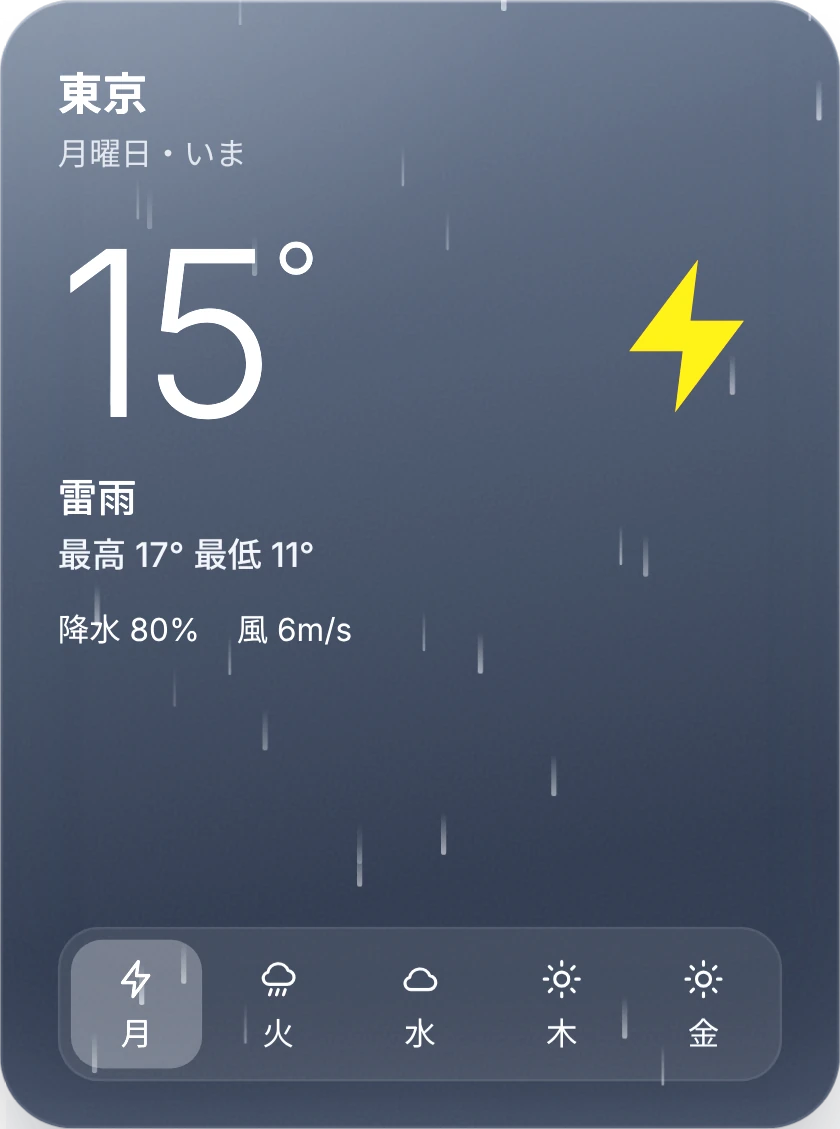
天気Weather今日と1週間の天気を Apple Weather から。Today's and this week's weather from Apple Weather.
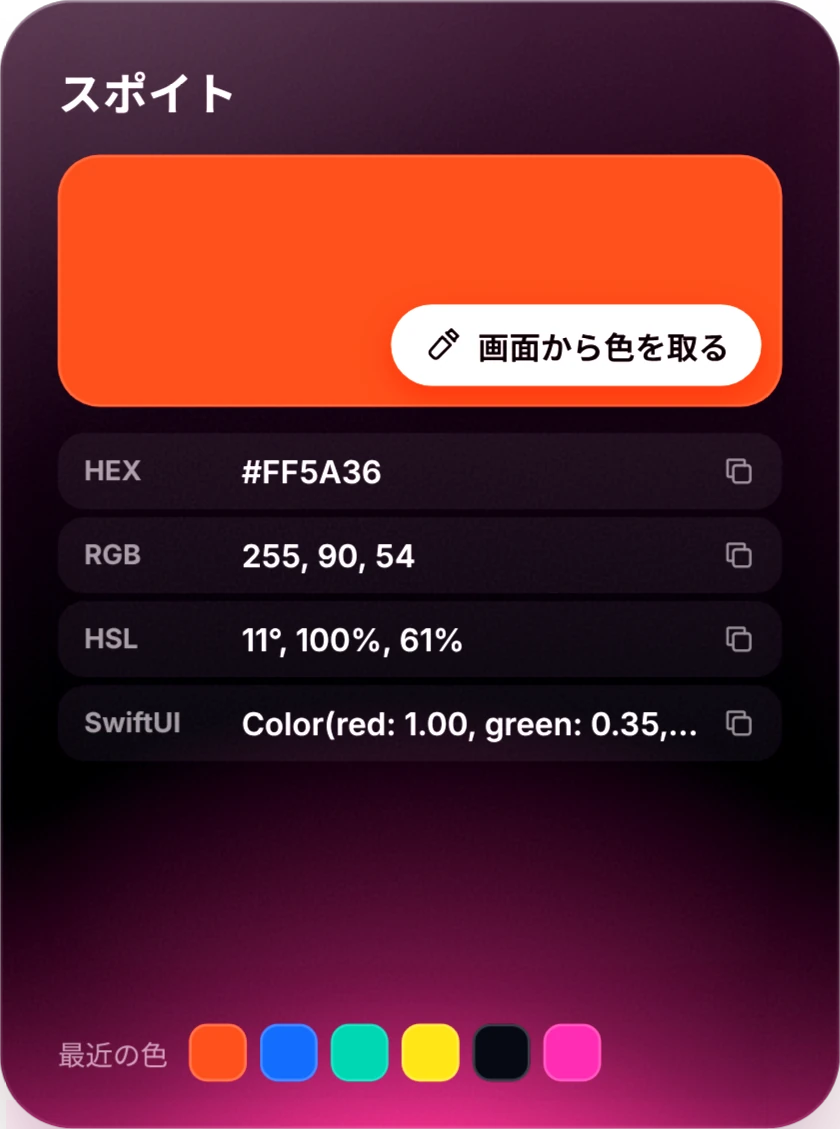
スポイトColor picker画面のどこからでも色を拾い、HEX や RGB でコピー。Pick a color anywhere on screen and copy it as HEX or RGB.
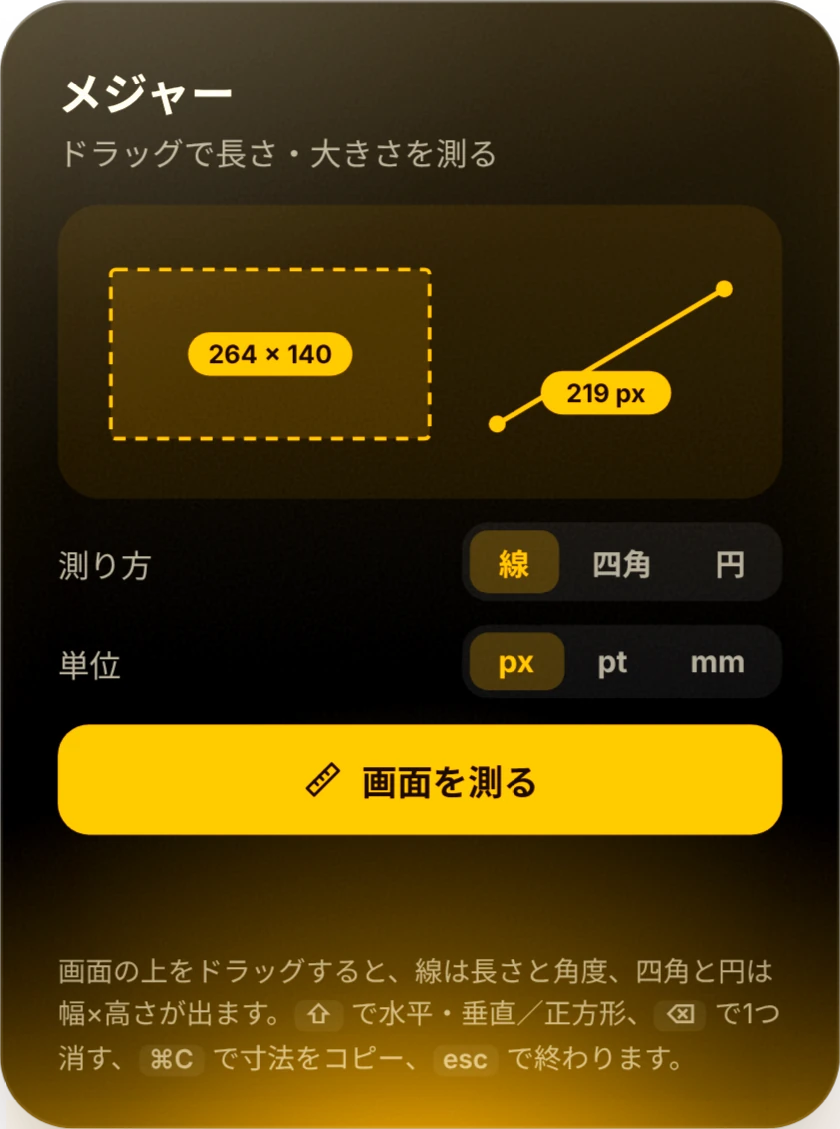
メジャーRuler画面の上をドラッグして、長さや角度を測ります。Drag on screen to measure length and angle.
日付の計算・和暦○日後の日付や、西暦と和暦の変換。
祝日・連休次の祝日と、連休までの日数。
今日はなんの日今日の記念日や年中行事を、ウィキペディアから。
Mac の調子も、手元でYour Mac, in good shape
バッテリーやストレージの確認、画面の明るさ、散らかったデスクトップの片付けまで。Check battery and storage, adjust the display, and tidy a cluttered desktop.
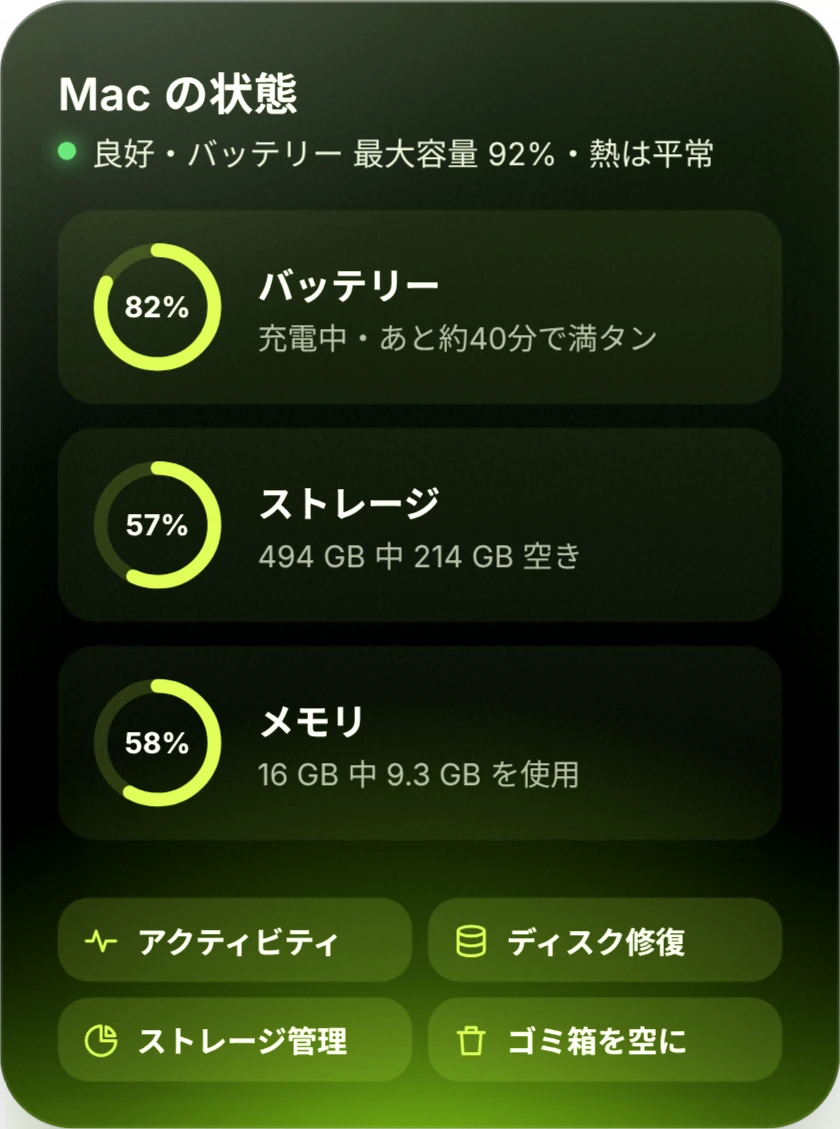
Mac の状態Mac status
バッテリー・ストレージ・メモリ。ゴミ箱を空にするボタンも。Battery, storage and memory, with a button to empty the Trash.
画面の調整Display
明るさ・色温度・解像度。日が沈んだら暖かい色にもできます。Brightness, color temperature and resolution. Warmer colors after sunset.
デスクトップ整理Desktop tidy
散らかったファイルを種類ごとに片付けたり、アイコンを隠したり。Sort a cluttered desktop by type, or hide the icons.
ファンの回転数・温度と、内蔵画面の明るさの細かな調整は直販版のみです。Fan speed, temperatures and fine built-in display brightness are in the direct version only.
画面の端にも、 いつものカードYour cards, at the edge of the screen
マウスを画面の端に寄せると、アイコンのバーが出ます。載せればカードが開き、Finder のファイルもそのまま落とせます。Move the pointer to the screen edge and a bar of icons slides out. Hover to open a card, and drop files from Finder straight onto it.
出すカードは自分で選べるChoose which cards it shows
クリックで開いたままに固定Click to keep a card pinned open
使わないときはオフのままOff until you turn it on
PDF見積書.pdf
見た目も、好みに合わせてMake it look your way
ダークとライト、つやのあるリッチと、すっきりしたシンプル。文字の大きさやコントラストも変えられます。Dark or light, glossy Rich or clean Simple. Text size and contrast are adjustable too.
まずは14日間、 無料でお試しくださいTry it free for 14 days
発売週は 20% OFF20% off in launch week
¥2,400買い切り$15.99one-time
通常 ¥2,980Regular $19.99
14日間、すべての機能を無料で使えますEvery feature free for 14 days
14日後も、ショートカット表示はずっと無料The shortcut view stays free after that
無料でダウンロードし、気に入ったらアプリ内で一度だけ購入Free download. Unlock once with an in-app purchase
サブスクではありません。アップデートも追加料金なしNo subscription. Updates included
見ているのは ⌘ などの修飾キーが押されているかどうかだけです。打った文字の中身は記録も送信もしません。No. It only checks whether a modifier key like ⌘ is held down. What you type is never recorded or sent.
アクセシビリティの許可は何に使いますか?Why does it need Accessibility permission?
いま使っているアプリのメニューを読んでショートカットの一覧を作り、押したときに実行するためと、定型文やクリップボードの中身をカーソルの位置に貼り付けるためです。最初の起動で、許可の出し方を画面で案内します。To read the menus of the app you're using, list its shortcuts and run the one you click, and to paste snippets and clipboard items at the cursor. The first launch shows you how to grant it.
14日間が過ぎたらどうなりますか?What happens after 14 days?
いまのアプリのショートカットを出して実行する機能は、そのまま無料で使えます。カード・サイドバー・並べ替えは、購入すると使えるようになります。勝手に課金されることはありません。Seeing and running the current app's shortcuts stays free. Cards, the sidebar and rearranging unlock when you buy. You're never charged automatically.
直販版と App Store 版の違いは?Direct version vs. App Store version?
App Store 版は Apple の決まりにより、ファンの回転数・温度の表示と、内蔵画面の明るさの細かな調整がありません。「最近のファイル」は、自分で選んだフォルダの中から出します。そのほかは同じです。Because of App Store rules, the App Store version has no fan speed or temperature readout and no fine built-in display brightness control, and Recent Files shows only folders you choose. Everything else is the same.
対応している Mac は?Which Macs are supported?
macOS 13 Ventura 以降の Mac で動きます。Any Mac running macOS 13 Ventura or later.
データはどこに保存されますか?Where is my data stored?
クリップボードの履歴・定型文・メモなどは、すべてお使いの Mac の中に保存します。外部のサーバーには送りません。Clipboard history, snippets and notes all stay on your Mac. Nothing is sent to an outside server.




 Mac の状態Mac status
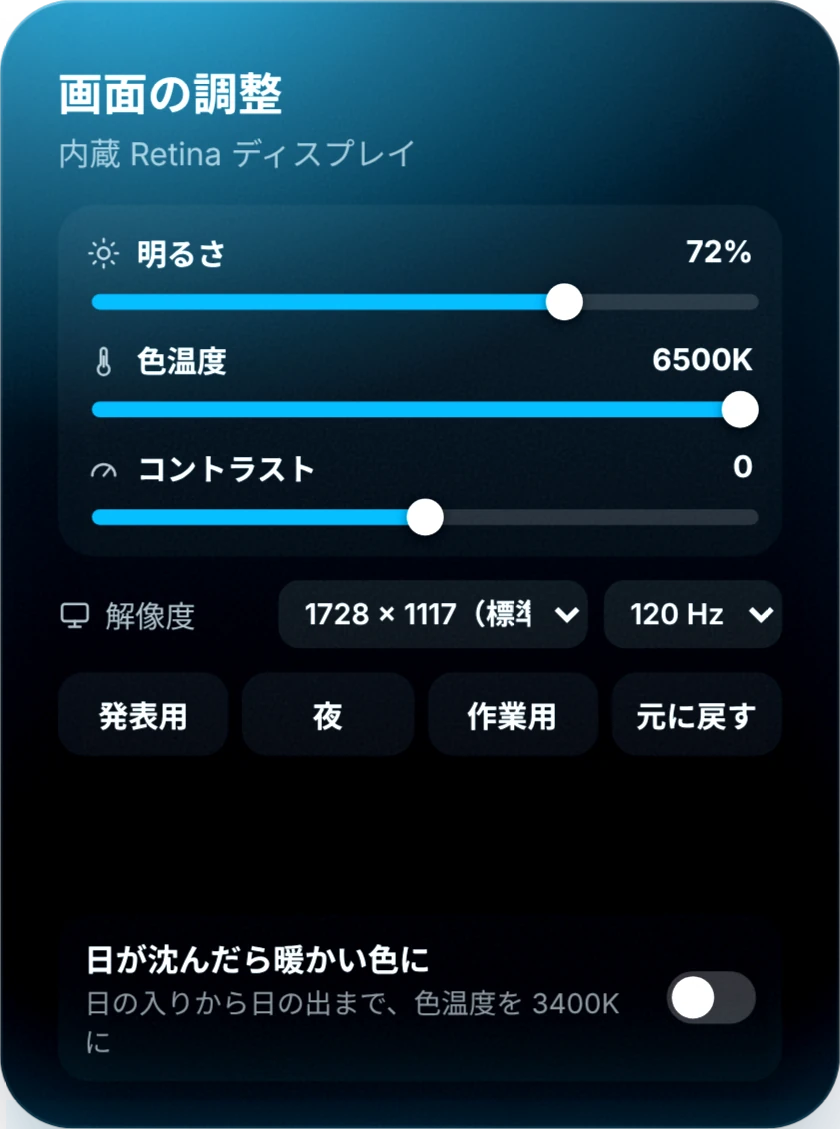 画面の調整Display
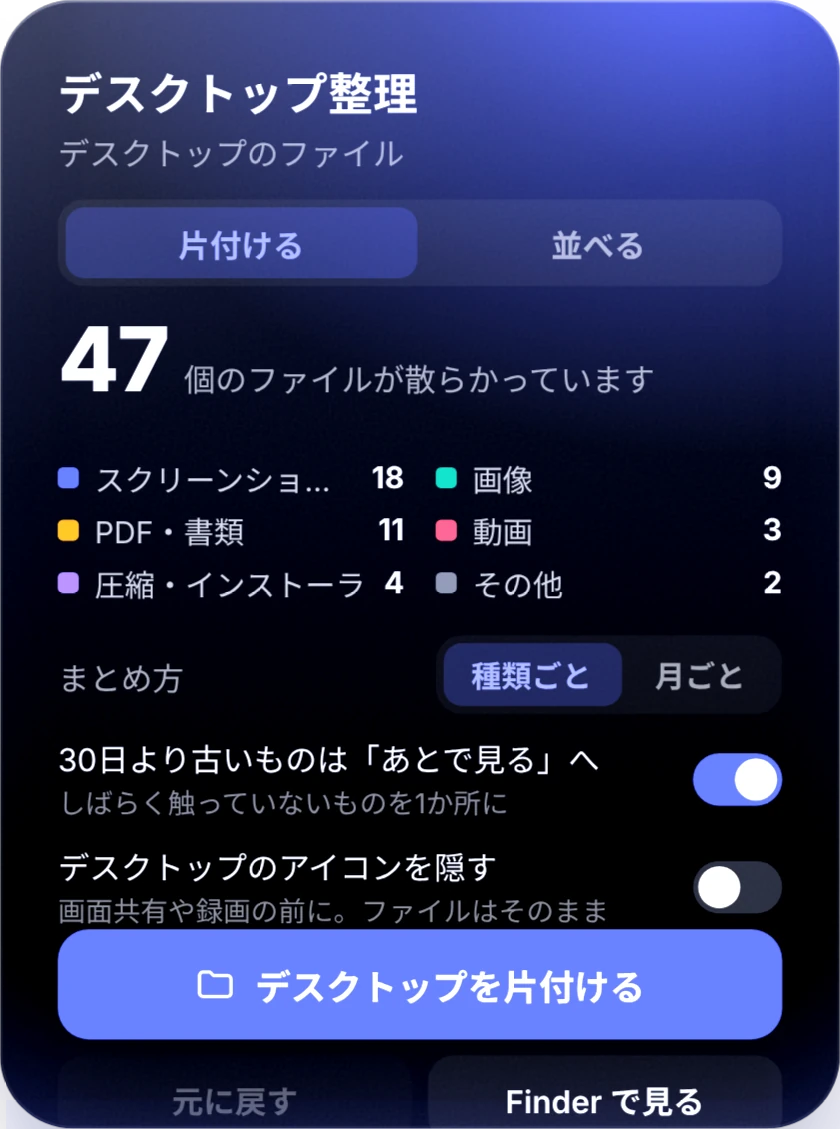 デスクトップ整理Desktop tidy

